
How to use the Setup Wizard
Walk through every step of the SEO Booster first-run Setup Wizard, Search Console, weekly email, automatic links, SEO scan, AI, health checks, and where to work next.
After you install and activate SEO Booster, the Setup Wizard opens so you can connect Search Console, turn on helpful options, and start finding improvements. Most steps can be skipped and completed later. Your existing data stays intact if you run the wizard again.
Related docs: How to install SEO Booster Pro · GSC Overview · Automatic Linking · SEO Possibilities · Tools overview
Welcome
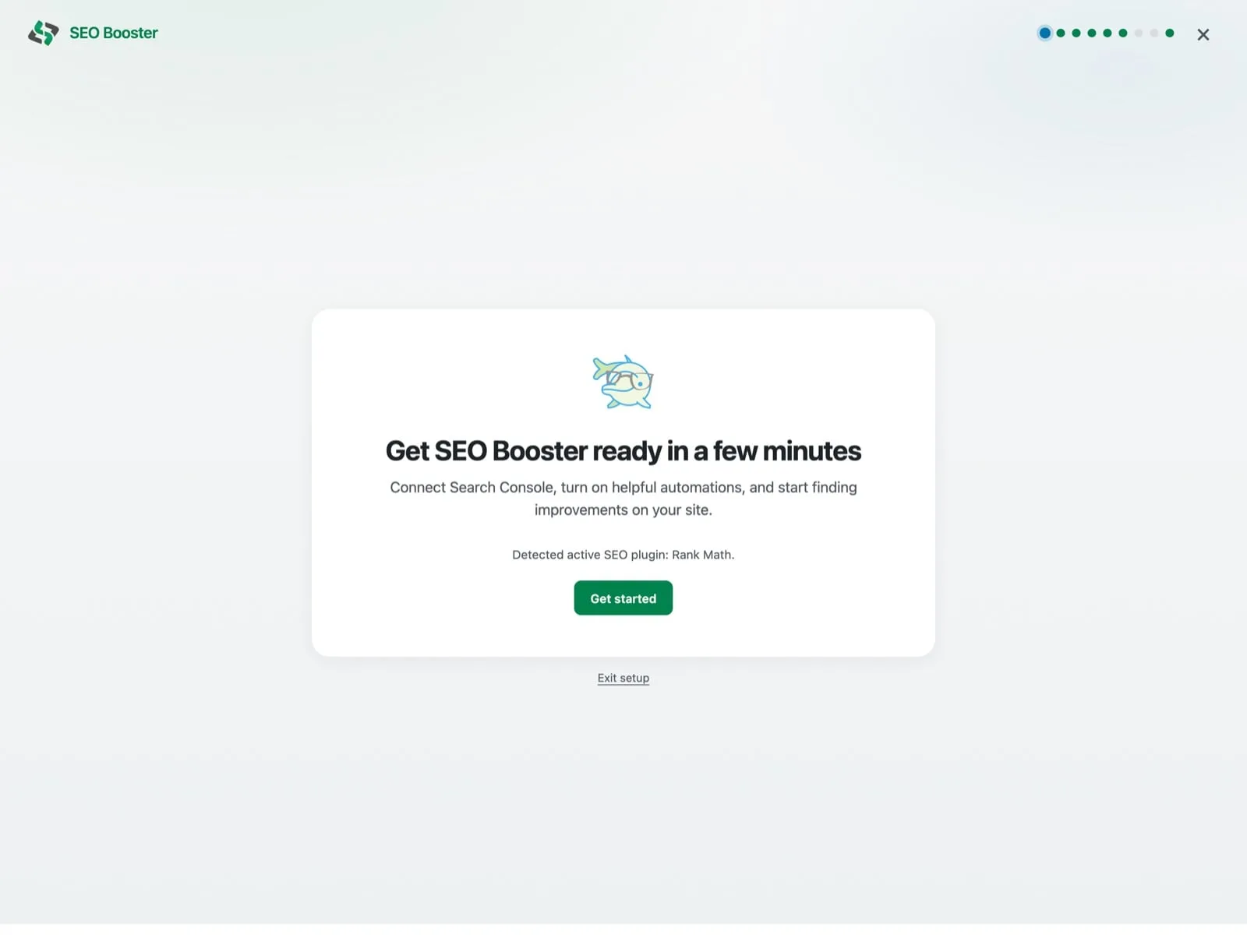
The first screen introduces the wizard. If SEO Booster detects an active SEO plugin (for example Rank Math or Yoast), it notes that here. Click Get started to continue.
Connect Google Search Console
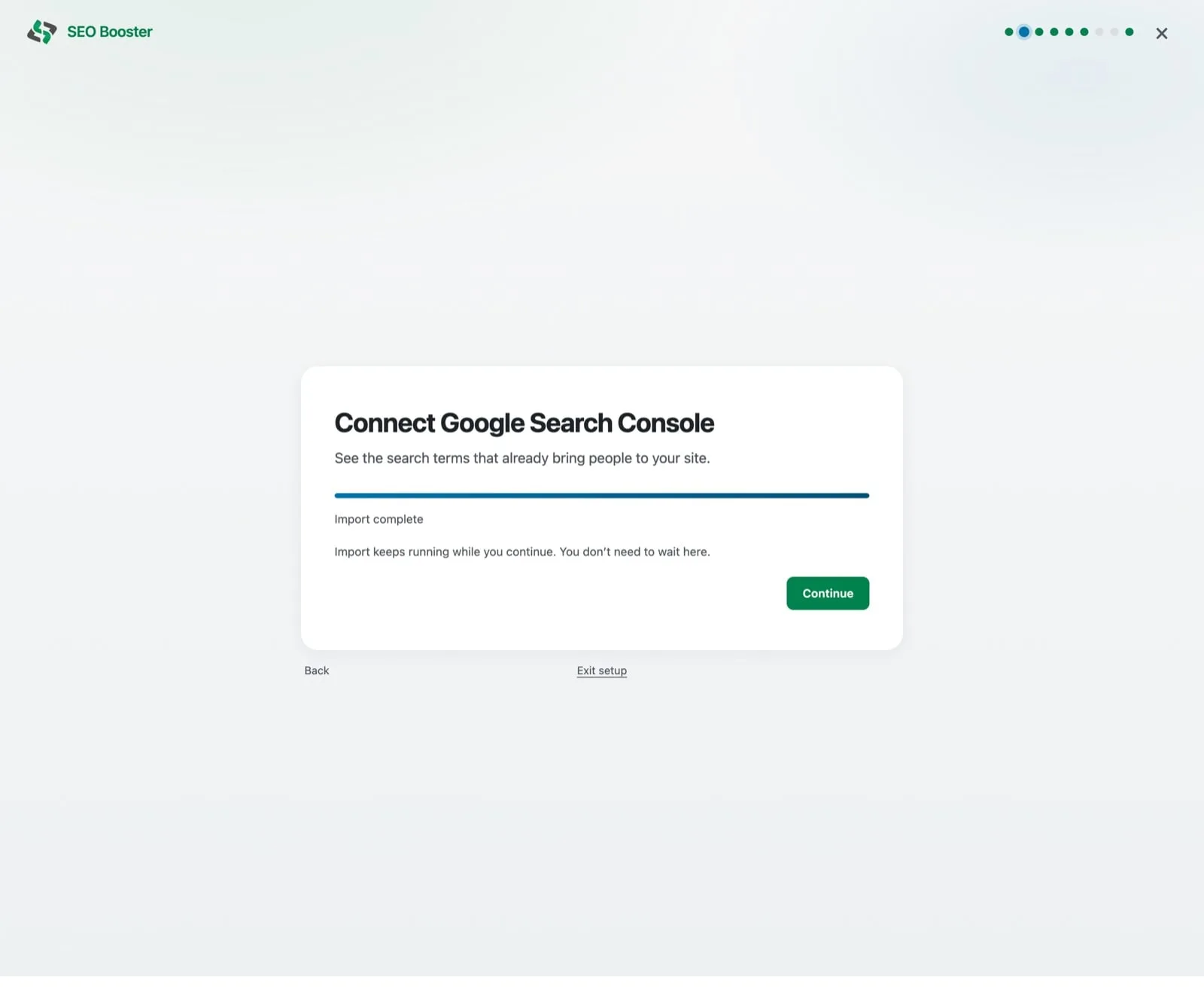
This step connects your Google account so SEO Booster can import the search queries that already bring people to your site.
- Click Connect Google and sign in with the Google account that has access to your Search Console property.
- Choose the correct site/property when prompted.
- Pick how much history to import (28, 90, or 180 days) and start the import.
Import continues in the background, you do not need to wait on this screen. You can also choose Skip this step and connect later from the dashboard or GSC screens.
For property access and data details, see GSC Overview and Grant access to a Google Search Console property.
Weekly SEO email
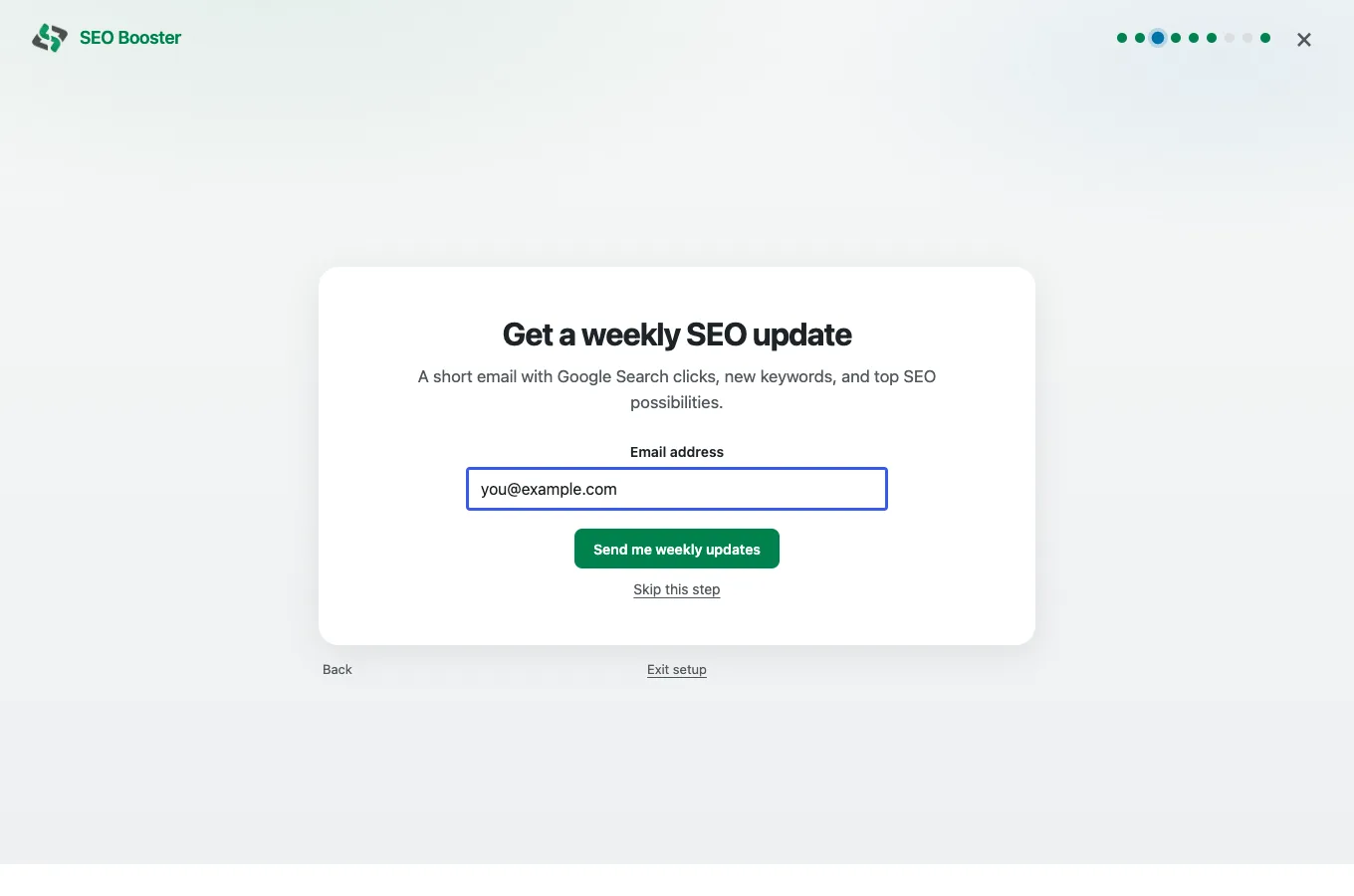
Optionally subscribe to a short weekly email with Google Search clicks, new keywords, and top SEO possibilities. Confirm or enter your email address, then click Send me weekly updates, or Skip this step.
Automatic links
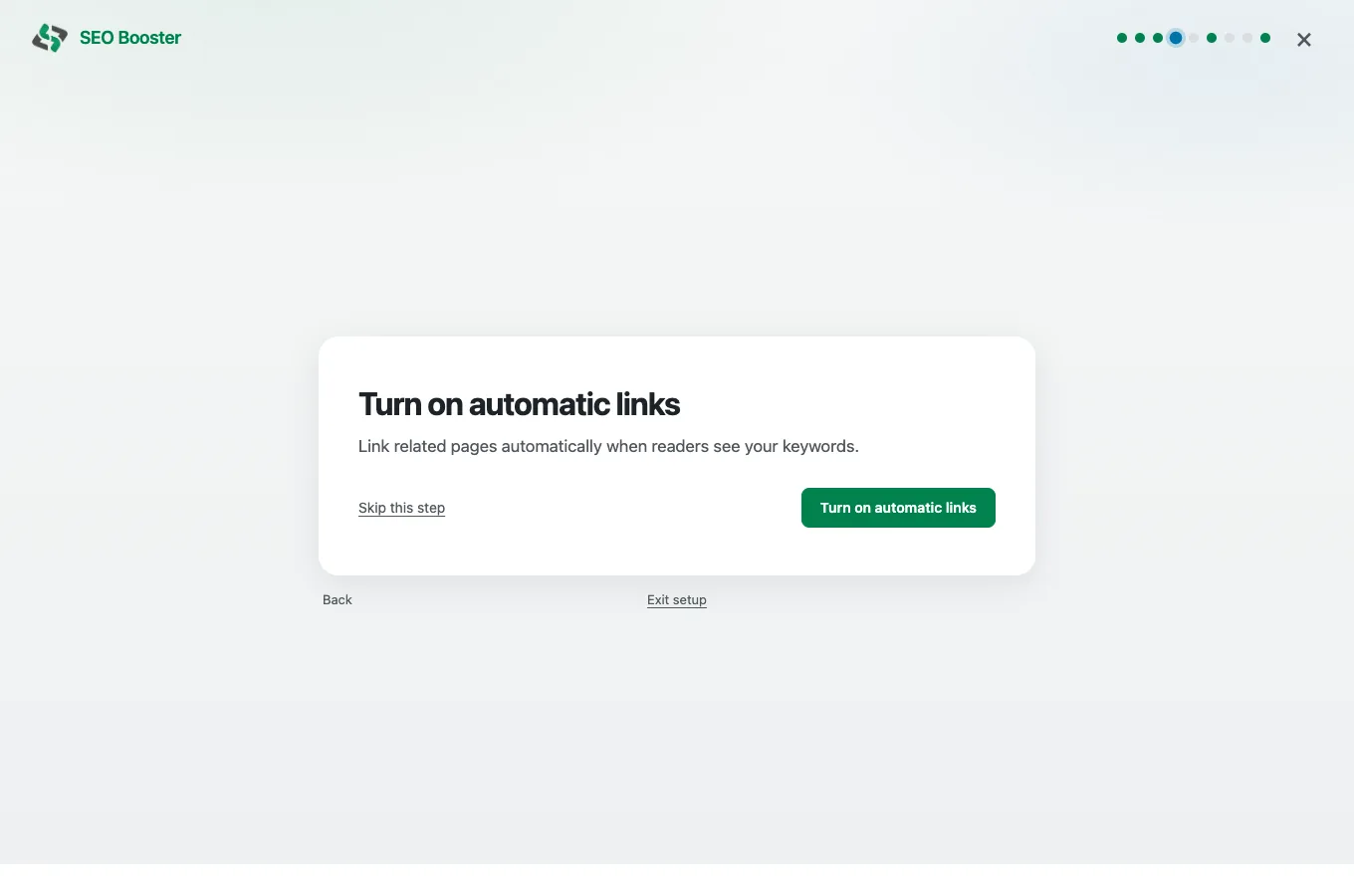
Turn on automatic internal linking so related pages can link when readers see your keywords. If Search Console data is available, the wizard may show suggested links. Click Turn on automatic links, or skip and enable later from SEO Booster → Automatic Links.
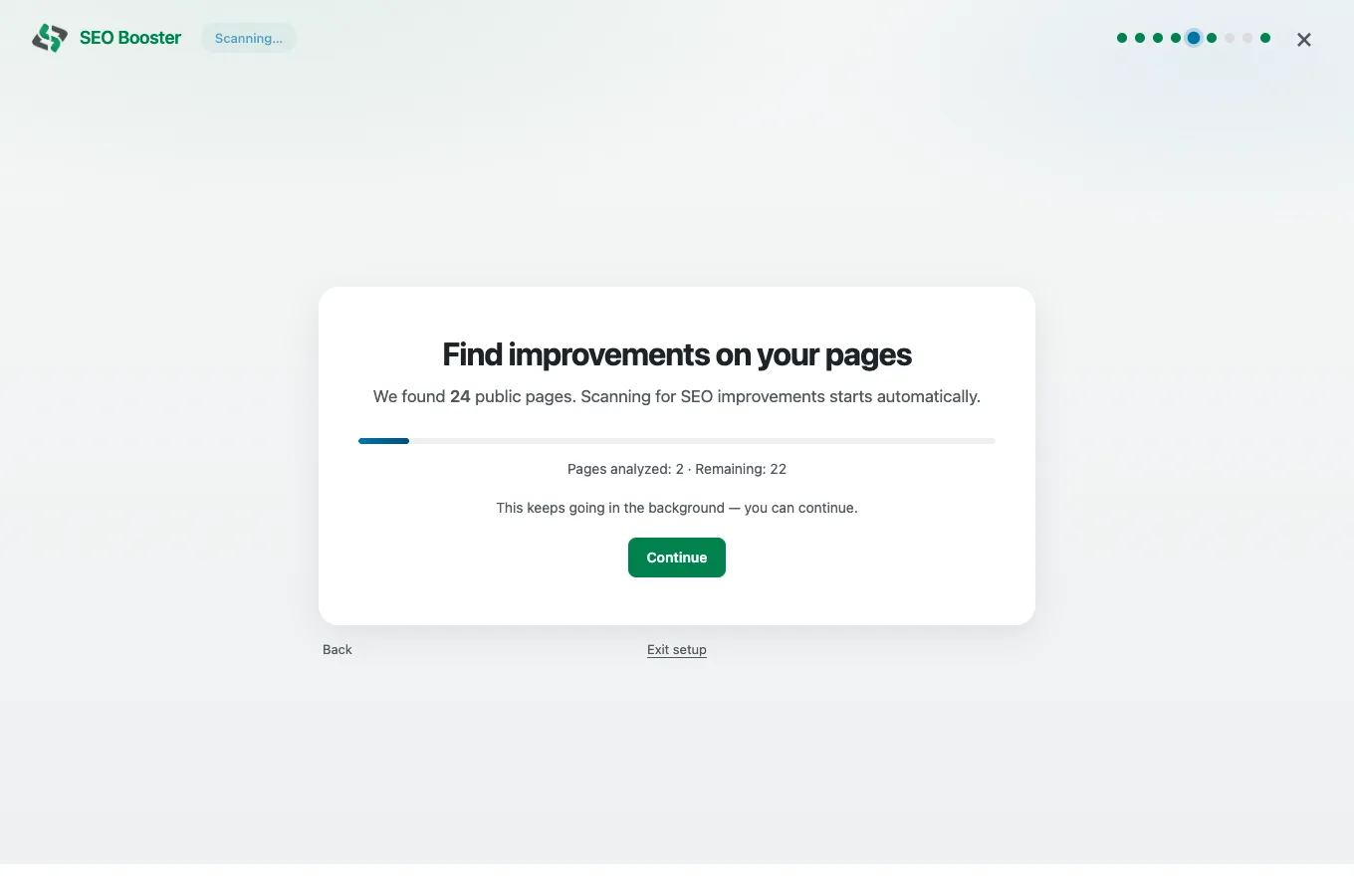
Find improvements (SEO scan)
SEO Booster counts your public pages and starts scanning for on-page improvements automatically. Progress appears on this screen; the scan keeps running in the background if you click Continue.
Results show up under SEO Possibilities. See SEO Possibilities overview.
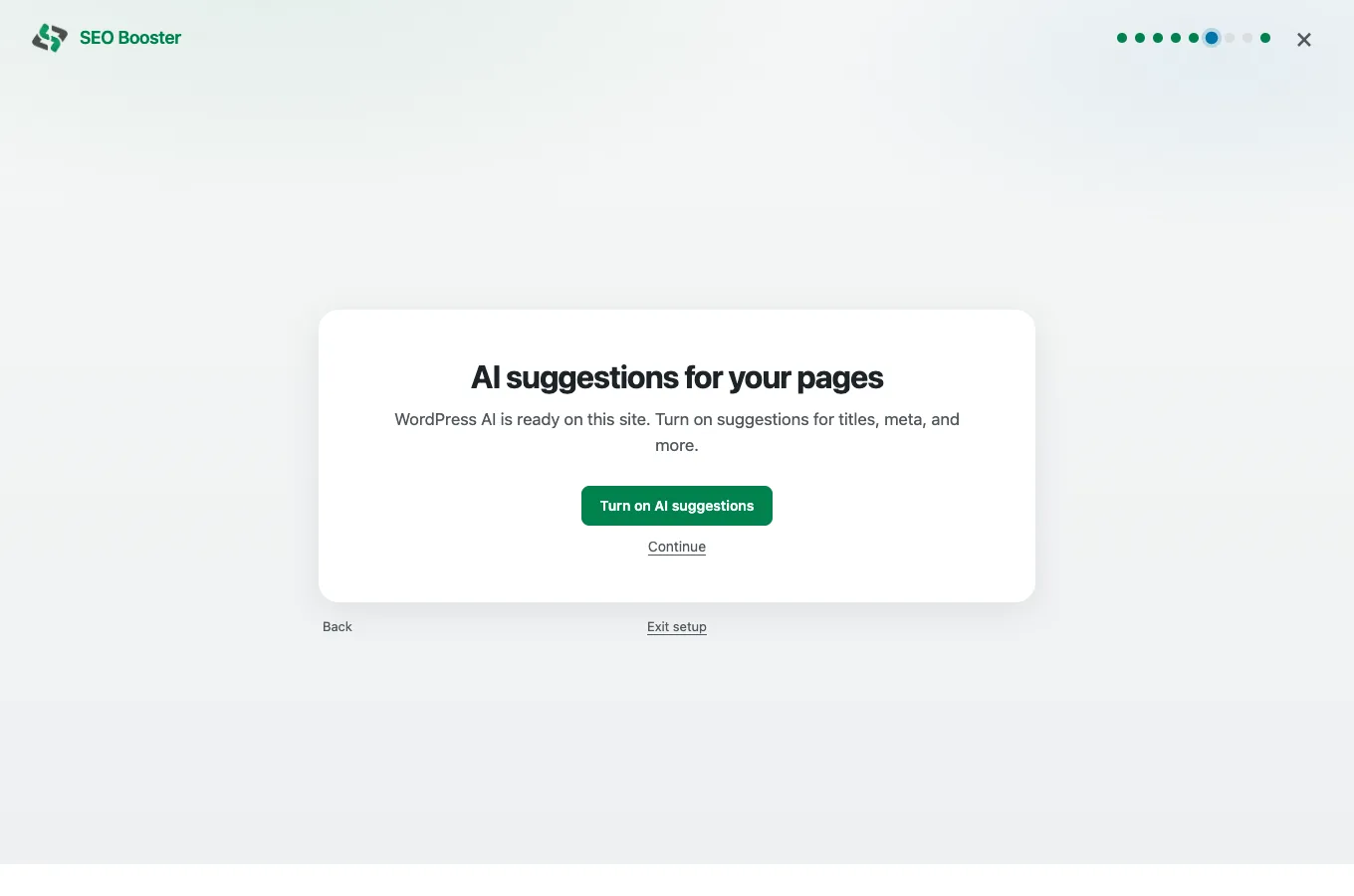
AI suggestions
You can enable optional AI for titles, meta, and more inside SEO Booster. If WordPress Connectors (WordPress 7+) is ready, you can turn that on from the wizard. You can also use prepaid SEO Booster Credits: open seoboosterpro.com/credits/, create an API key, then connect under Settings → AI / LLM. Click Continue to skip for now. Core SEO works with AI off.
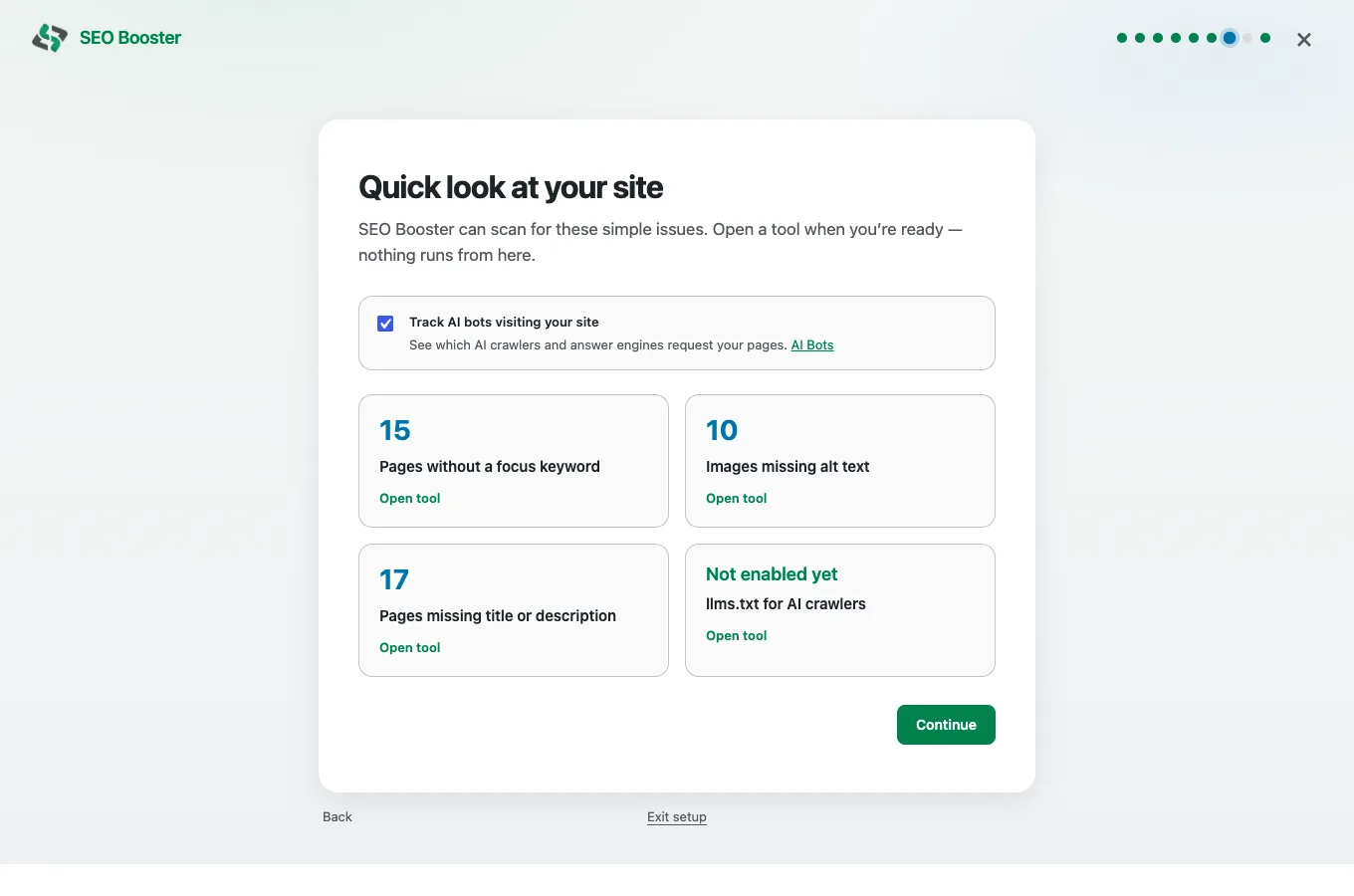
Quick look at your site
This step shows a health peek: pages without a focus keyword, images missing alt text, missing titles or descriptions, and whether llms.txt is ready. You can also enable Track AI bots visiting your site.
Nothing bulk-runs from here, use Open tool on a card when you are ready. See Tools overview and llms.txt.
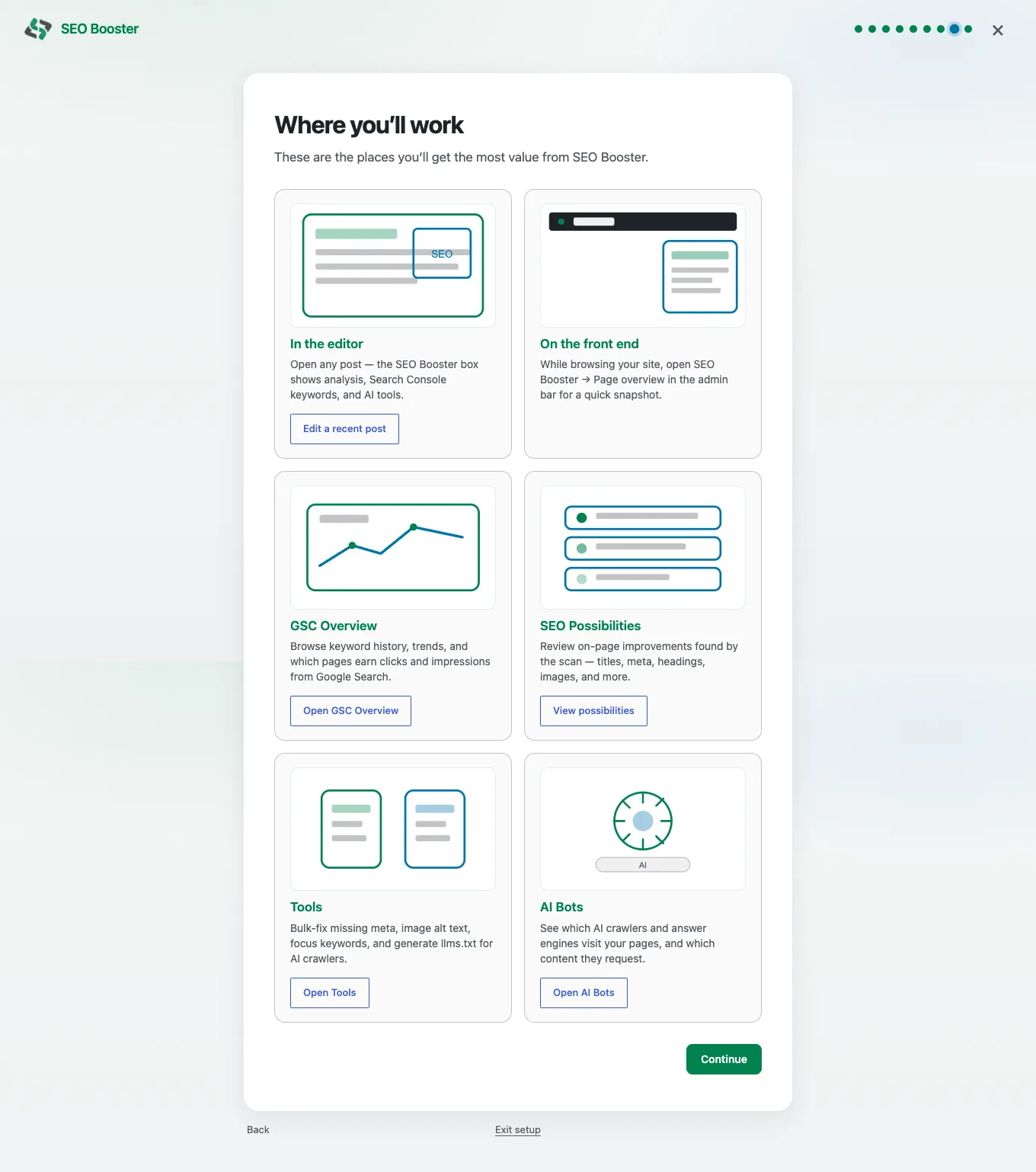
Where you’ll work
A short map of the places you’ll use SEO Booster most: the post editor, front-end admin bar Page overview, GSC Overview, SEO Possibilities, Tools, and AI Bots. Open any shortcut you like, then click Continue.
You’re ready
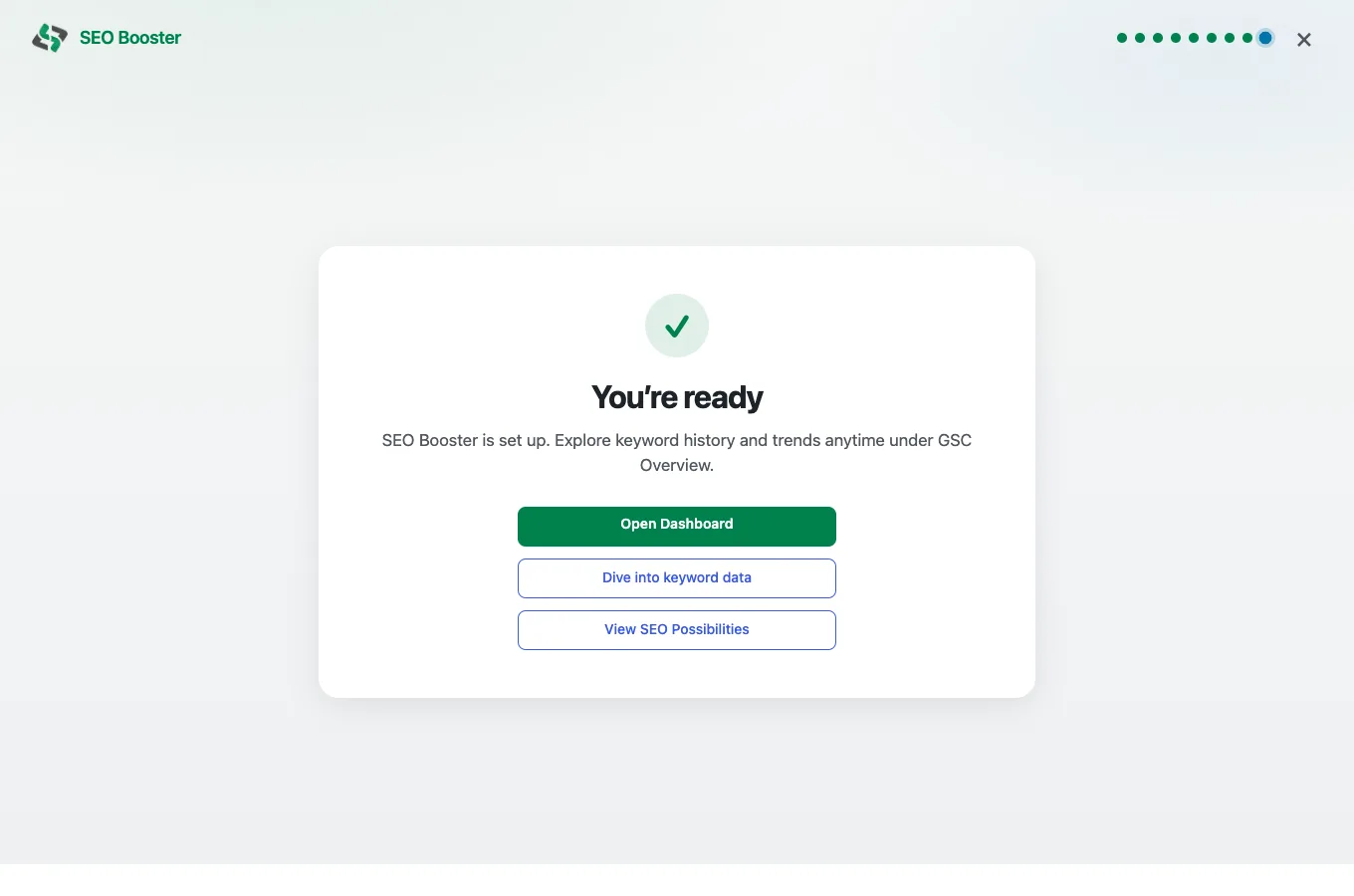
Setup is complete. Jump to the Dashboard, keyword data under GSC Overview, or SEO Possibilities from the buttons on this screen.
How to open the wizard again
- Dashboard: Use Continue setup if setup is still in progress, or Run setup wizard to start from the beginning.
- Settings → Email: Click Run setup again. Your existing Search Console data and settings stay intact.
You can exit at any time with Exit setup or the close control; unfinished steps remain available the next time you open the wizard.
Browse topics