
AI Traffic
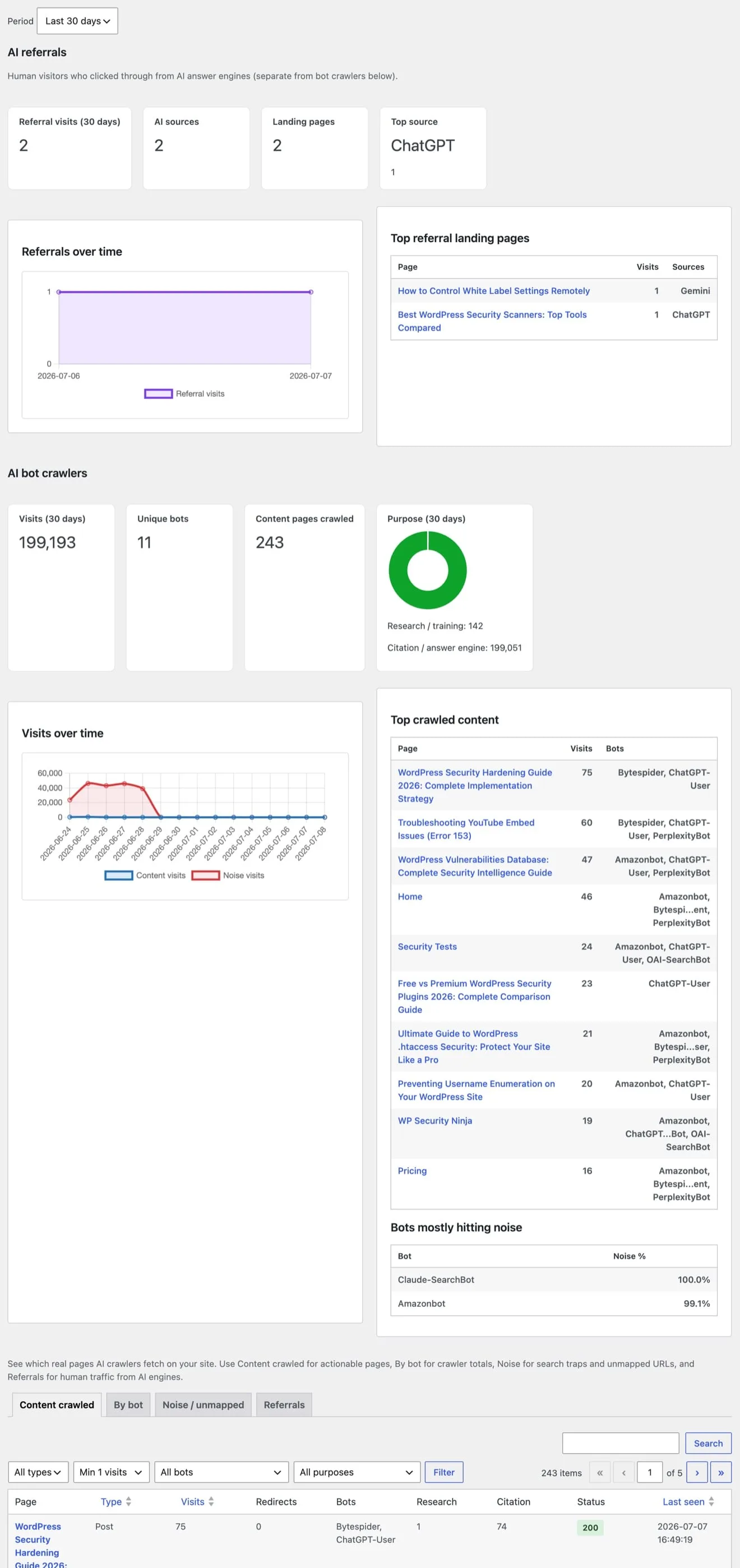
SEO Booster → AI Bots records AI crawler visits on your server in real time. See which pages assistants fetch, filter by bot and purpose, compare content vs noise, and with Pro, return HTTP 403 for selected bots.
Part of SEO Booster.
Works with your SEO plugin, and makes it smarter.
Keep the SEO plugin you already use. We add Search Console context, a clear fix list, automatic links, and tools that write into the meta you already have. Works with Yoast, Rank Math, AIOSEO, SEOPress, and TSF.
- Yoast SEO
- Rank Math SEO
- All in One SEO (v4+)
- SEOPress
- The SEO Framework (v5+)
See which AI crawlers visit your content
What is it?
Local hit tracking for AI bots and human referrals from answer engines, stored on your server, not sent elsewhere.
Who is it for?
Publishers who want to know real AI interest on their URLs, not industry guesses or third-party estimates.
What does it solve?
Blind spots on AI traffic. See which bots and pages matter, filter noise, and export when you need to share data.
What you get
Summary cards and charts
Total visits, unique bots, content pages crawled, and a purpose breakdown chart (research/training vs citation/answer engine).
Drill-down per content page
Click a row on the Content tab to see which bots visited that URL, with status codes and visit counts.
Filter noise from signal
The Noise tab isolates unmapped URLs, search traps, and junk paths so content metrics stay meaningful.
Feed Entity Map (Pro)
High bot-traffic pages inform Entity Map curation and crawl-gap suggestions so you can publish /entitymap.json for AI systems that already fetch your content.
AI Bots report controls
Tabs: what each view shows
Path: SEO Booster → AI Bots. Switch tabs above the table; period applies to all tabs.
- Content crawled: mapped WordPress content (posts, terms, archives, home) with visits, bot list, research/citation split, HTTP status, last seen
- By bot: aggregate per bot name with purpose, visit count, top content page, noise ratio, last seen
- Noise / unmapped: trap paths, unmapped URLs, and junk requests; bulk action Purge all noise data
Filters on each tab
Use the Filter button after changing dropdowns. Filters combine within the active tab.
- Period: Last 7 / 30 / 90 days (toolbar dropdown, auto-submits)
- Content tab: object type (post, term, archive, home); min visits (1, 5, 10); bot; purpose (research/training or citation/answer engine)
- By bot tab: purpose filter; no per-bot dropdown (table is already per-bot)
- Noise tab: bot and purpose filters
Settings that affect tracking
SEO Booster → Settings → AI / LLM section.
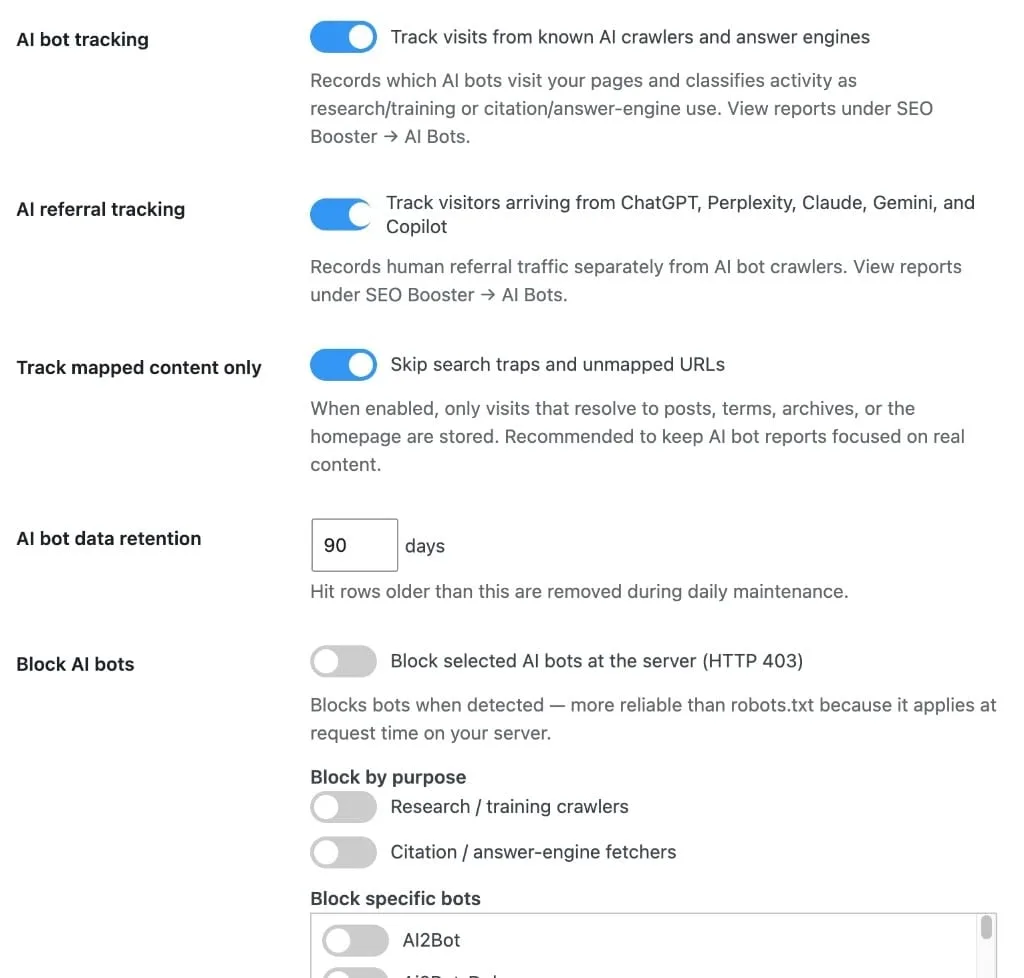
- AI bot tracking: on by default; turn off to stop recording
- Track mapped content only: on by default; skips unmapped URLs from the Content tab (they appear under Noise)
- Retention: 7 to 365 days stored hits (default 90); 30–60 days is usually enough, check Settings → Stats for table sizes
- Pro blocking: return 403 for selected bots or purposes; configure in Settings (block list shows visit counts)
How to use AI Bots
Confirm tracking is on
Open AI Bots. If a warning appears, enable tracking under Settings → AI / LLM.
Review Content crawled
Sort by visits. Prioritize pages with high research or citation fetches and healthy 2xx status codes.
Fix errors bots hit
Look for 3xx, 4xx, or 5xx status badges on high-visit rows. Fix redirects and 404s before polishing content.
Check By bot for spikes
Identify which crawlers drive volume. Pro users can block specific bots if policy requires it.
Clear noise periodically
On the Noise tab, purge trap/unmapped data after reviewing so reports stay focused on real content.
Trusted by WordPress site owners
“As an e-commerce business, SEO Booster Pro has saved us hours of work while improving our rankings. The automated internal linking and 404 error monitoring are invaluable.”
Sophia Kim
Head of Growth, UrbanStyle Co.
Frequently Asked Questions
How fresh is the data?
Visits are recorded as each request finishes, including the real HTTP status. Data appears as requests happen.
How long is AI traffic kept?
Configurable retention from 7 to 365 days (default 90) under Settings → AI / LLM. 30–60 days is usually enough; check Settings → Stats for database usage.
Do I need GSC connected for AI Bots?
No. GSC badges on content rows appear when Search Console data exists for that URL; tracking works without GSC.
What is Content vs Noise?
Content rows map to WordPress objects (posts, terms, etc.). Noise includes unmapped paths, search traps, and junk URLs: useful for spotting crawler waste, not content strategy.
Can I block AI bots?
Tracking is free. Pro can return HTTP 403 for selected bots or purposes under Settings → AI / LLM. The block list shows visit counts to help you choose.
Does AI traffic data leave my site?
No. Detection and storage are local to your WordPress database.
How does this relate to Entity Map?
Bot visit data helps Pro users build and fill Entity Map (Tools → Entity Map) with pages crawlers already care about. Tracking stays free; Entity Map is Pro.
Boost your rankings with smarter SEO
Connect Google Search Console, fix pages from real search data, automate internal links, and use AI when the repetitive work piles up.
Get Started