
Page overview on the frontend
Logged in on your live site? Open SEO Booster → Page overview for a floating snapshot of the current URL. Score, title and meta, issues, opportunities, AI title ideas, and top Search Console keywords.
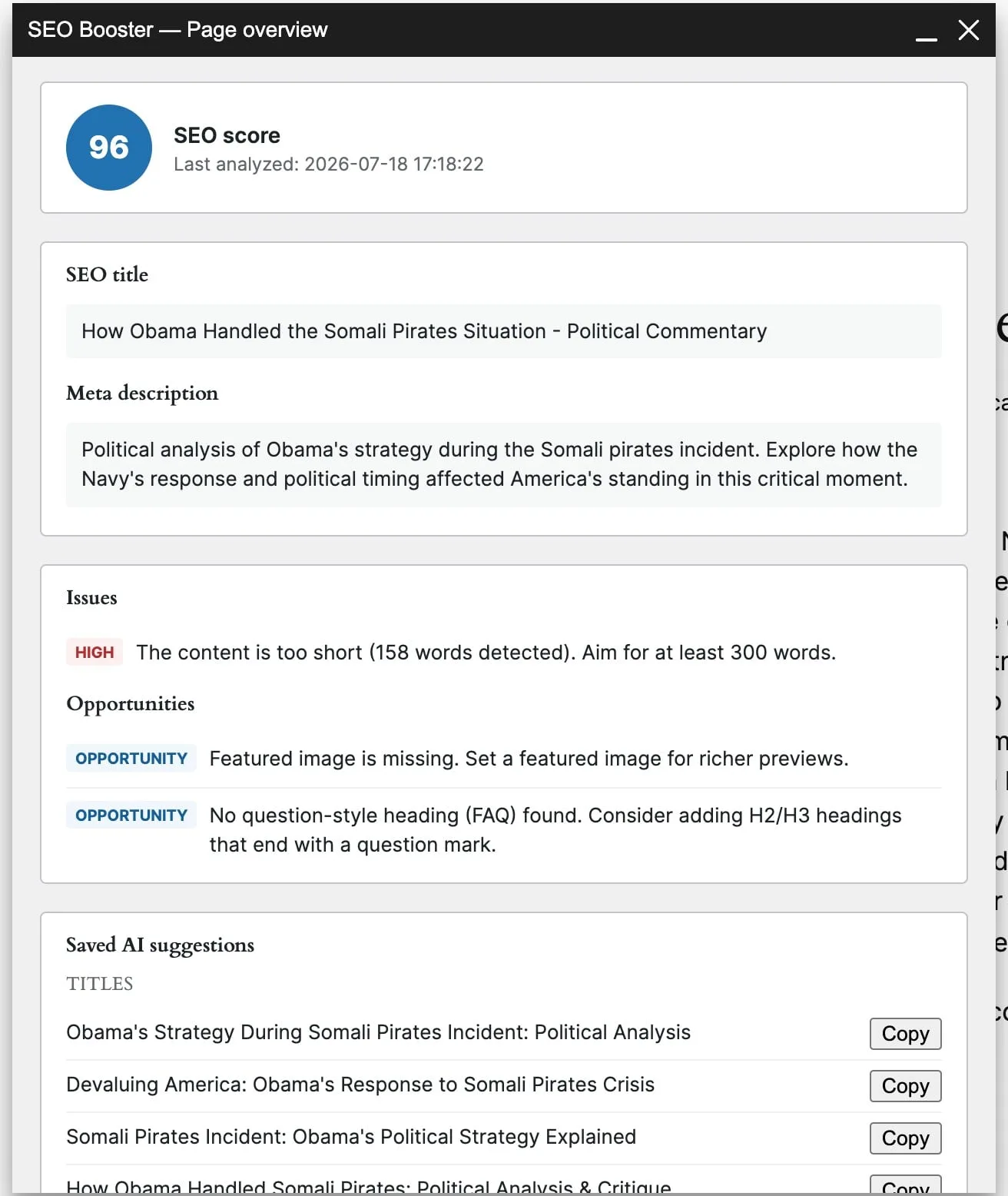
Part of the seo booster WordPress plugin.
Works with your SEO plugin, and makes it smarter.
Keep the SEO plugin you already use. We add Search Console context, a clear fix list, automatic links, and tools that write into the meta you already have. Works with Yoast, Rank Math, AIOSEO, SEOPress, and TSF.
- Yoast SEO
- Rank Math SEO
- All in One SEO (v4+)
- SEOPress
- The SEO Framework (v5+)
A quick read on the page you are viewing
What is it?
A floating panel from the WordPress admin bar that shows a snapshot of the current post, page, or term while you browse.
Who is it for?
Editors and SEO managers who spot-check pages on the frontend without opening wp-admin for every URL.
What does it solve?
Context-switching to the dashboard or edit screen just to see score, issues, and keywords for the page you already have open.
Why Page overview helps
Instant context
Score, last analyzed time, and the live SEO title and meta for the URL under the admin bar.
Issues where you see them
Critical and High findings plus opportunities appear while you look at the rendered page.
Jump back to edit
Open the editor from the snapshot when you are ready to fix titles, content, or keywords.
What you see in Page overview
Open it from the admin bar
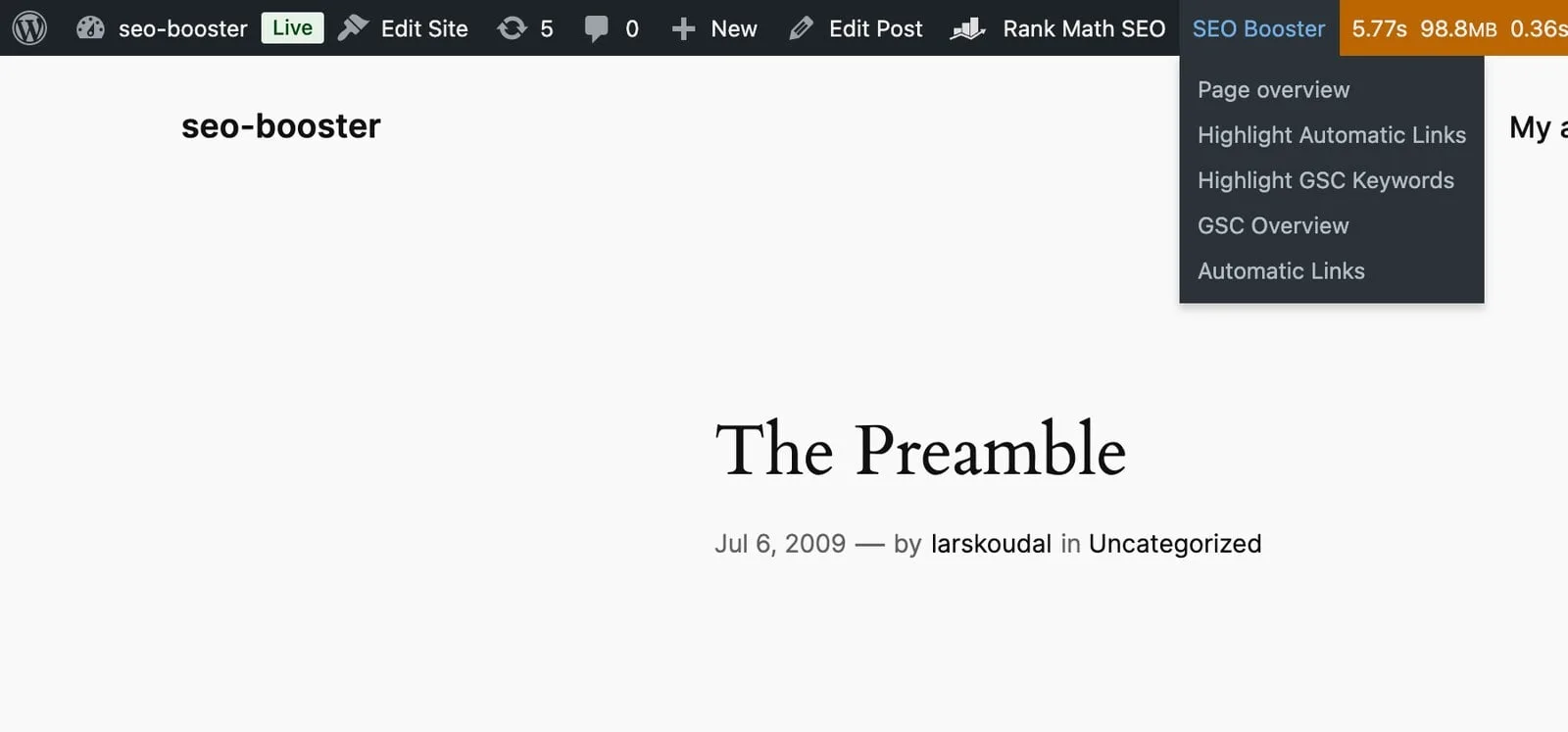
On any frontend post, page, or term (while logged in), open WordPress admin bar → SEO Booster → Page overview. No page reload required.
- Page overview opens a floating panel over the current URL
- Highlight GSC Keywords and Highlight Automatic Links sit in the same menu
- Shortcuts to GSC Overview and Automatic Links for deeper work
Score, title, and meta
The panel shows the latest SEO score, when the page was analyzed, and the SEO title and meta description SEO Booster reads for that URL.
- SEO score with last-analyzed timestamp
- Current SEO title and meta description
- Empty fields called out so you know what is missing
Issues, opportunities, and AI title ideas
Open issues and opportunities from the last analysis appear in the same panel. If you have saved AI title or meta suggestions for the page, you can copy them without opening the editor first.
- Issues with severity badges (Critical, High, and more)
- Opportunities such as missing featured image or FAQ-style headings
- Saved AI title and description suggestions with Copy actions
Compact Top keywords
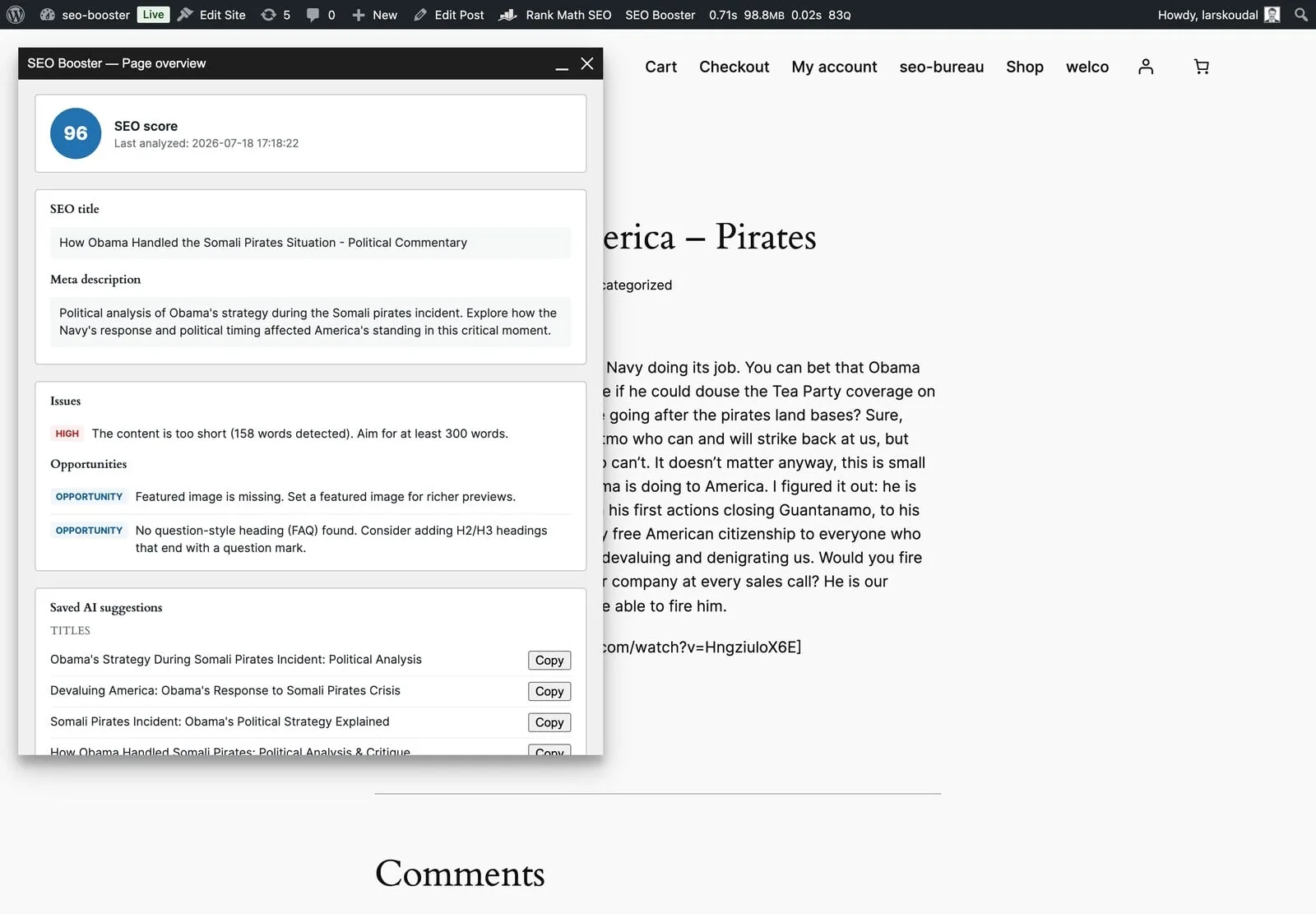
When Search Console data exists for the URL, Page overview ends with a compact Top keywords table: query, impressions, clicks, CTR, position, and whether the term is used in content. Trend charts, filters, and Create links stay on the edit screen Keywords tab.
- Compact table of the strongest queries for this URL
- Used / Not used / Not analyzed status at a glance
- For trends, filters, and Create links, open the Keywords tab in the editor
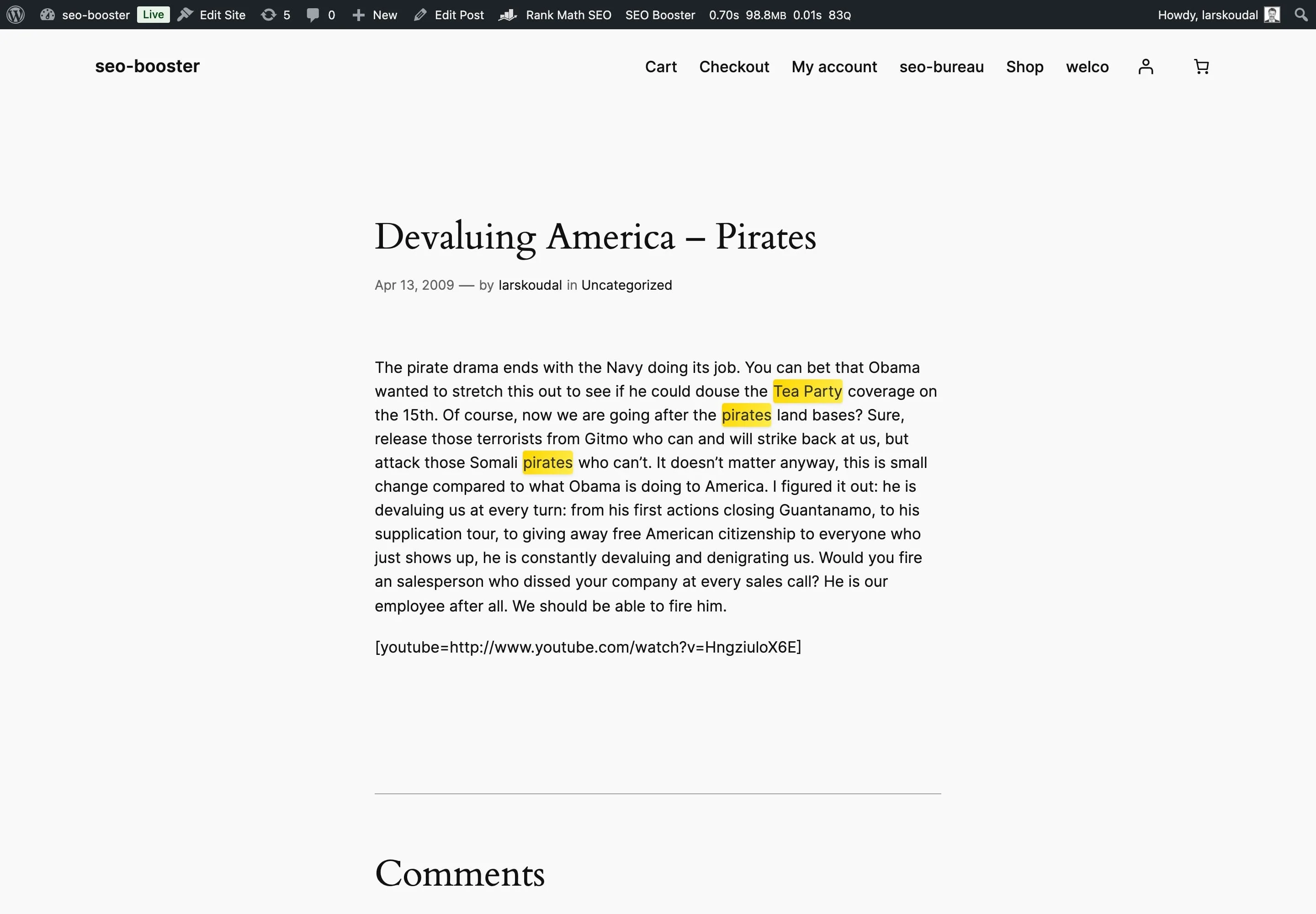
Highlight GSC Keywords on the page
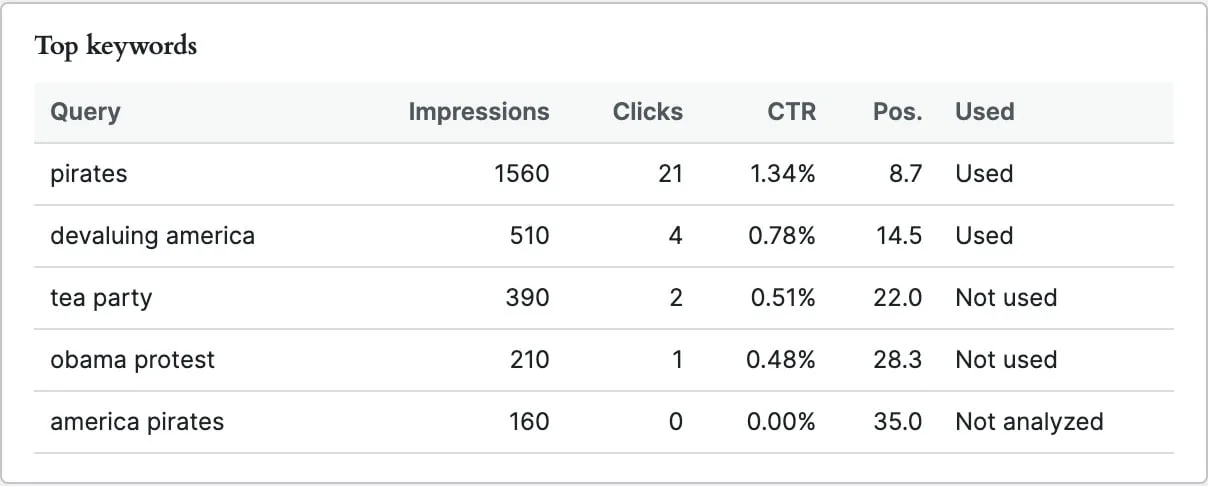
From the same admin bar menu, Highlight GSC Keywords toggles yellow highlights on imported queries in the rendered content so you can see which Search Console terms already appear on the page.
- Toggle from SEO Booster → Highlight GSC Keywords
- Highlights imported queries in the live page body
- Separate from Page overview, turn highlighting on while you browse
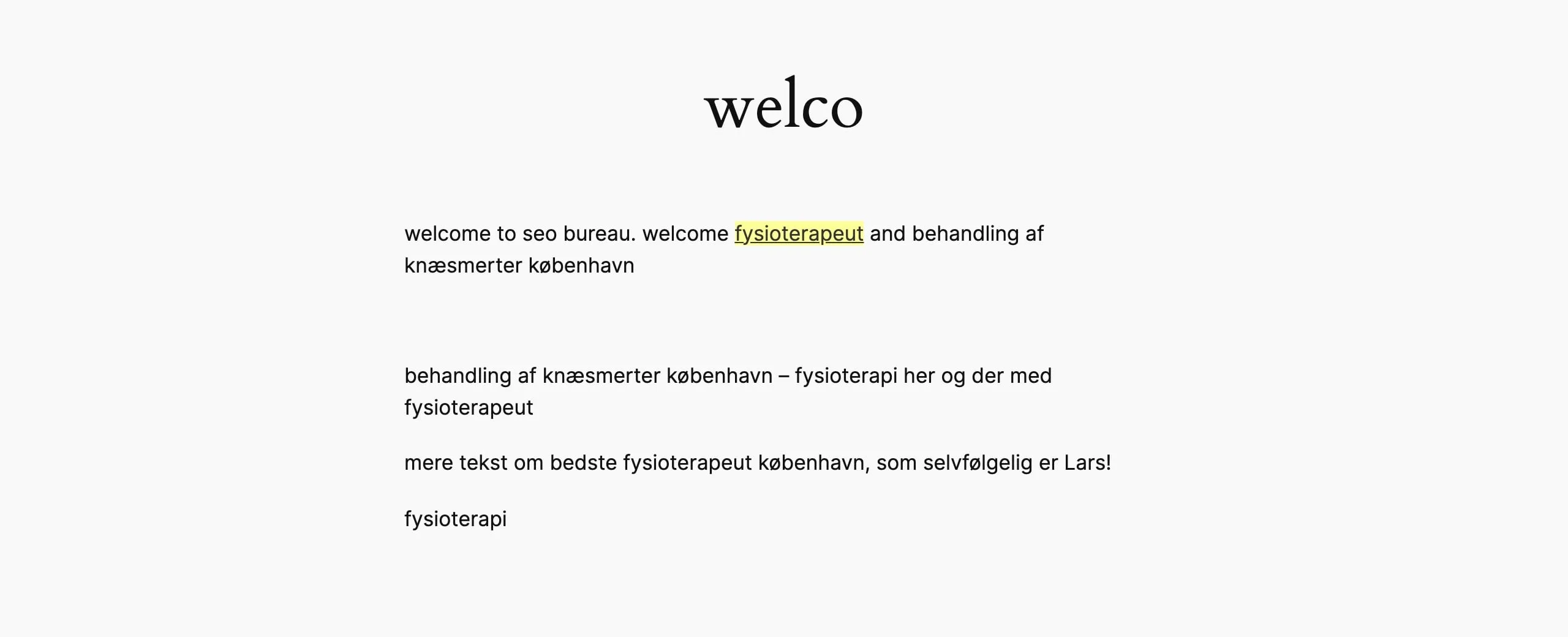
Highlight Automatic Links on the page
Highlight Automatic Links does the same for internal links SEO Booster injects. Yellow highlights mark keyword-to-URL matches on the live page so you can audit where autolink rules fire without guessing.
- Toggle from SEO Booster → Highlight Automatic Links
- Highlights autolinked phrases in the rendered content
- Works on pages where Automatic Linking is enabled
How to use Page overview
Log in and open a frontend URL
Visit any public post, page, or term while logged in as an administrator (admin bar must be visible).
Open Page overview
WordPress admin bar → SEO Booster → Page overview. The panel loads a snapshot for the current URL.
Review score and issues
Check SEO score, title and meta, Issues, and Opportunities. Copy a saved AI title if one fits.
Check Top keywords or highlight on-page
Scroll to the compact Top keywords table in the panel, or use Highlight GSC Keywords / Highlight Automatic Links from the admin bar. For charts and Create links, open the edit screen Keywords tab.
Fix in the editor
Use Edit from the panel or admin bar, update the page, then reanalyze so the next snapshot stays current.
Frequently Asked Questions
Where do I find Page overview?
On the frontend (not in wp-admin), open the WordPress admin bar → SEO Booster → Page overview. You must be logged in with a role that can see the admin bar. Step-by-step: [Page overview how-to](/docs/editing-pages/page-overview/).
Which URLs work?
Posts, pages, and terms that SEO Booster can resolve. Archive, search, and other non-singular views may show that Page overview is unavailable.
Is this the same as SEO Possibilities?
No. Page overview is a per-URL snapshot while you browse. SEO Possibilities is the sitewide prioritized queue of open issues across many URLs.
Does Top keywords include charts like the editor?
No. Page overview shows a compact table only (impressions, clicks, CTR, position, used). Trend charts and Create links are on the Keywords tab in the editor.
Does it require Google Search Console?
Score, issues, and title/meta work from analysis alone. Top keywords appear when GSC data exists for that URL.
Is Page overview free?
Yes. The admin bar Page overview snapshot is available on free and Pro. Pro adds conveniences elsewhere (for example autolink create actions in the editor Keywords tab).
How do I highlight GSC keywords on the page?
Admin bar → SEO Booster → Highlight GSC Keywords. That toggles highlighting of imported queries in the rendered content.
How do I highlight automatic internal links?
Admin bar → SEO Booster → Highlight Automatic Links. Autolinked phrases get a yellow highlight on the live page so you can see which rules fired.
Boost your rankings with smarter SEO
Connect Google Search Console, fix pages from real search data, automate internal links, and use AI when the repetitive work piles up.
Get Started