
Credits API keys and budgets
Create, copy, and revoke API keys in the Credits portal, and set per-site credit budgets so each WordPress site only sees its allocation.
AI and Credits overview · Connect in WordPress · Credits portal
Path: seoboosterpro.com/credits/ → API keys tab (after sign-in)
Each WordPress site that uses SEO Booster Credits should have its own labeled API key. Keys authenticate AI requests to api.seoboosterpro.com.
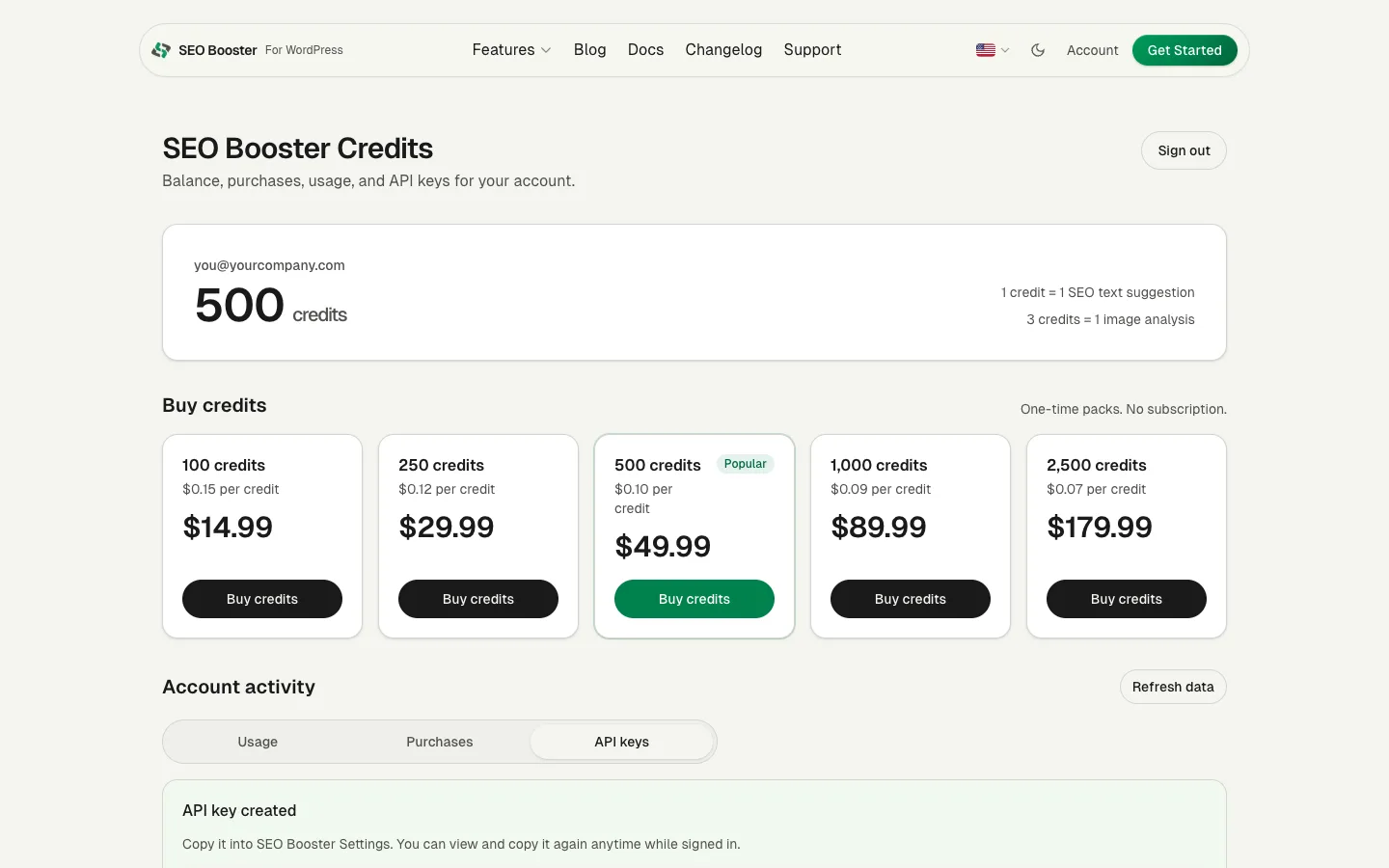
Create a key
- Sign in to the Credits portal.
- Open the API keys tab.
- Enter a label (for example
Production siteorStaging). - Click Create API key.
- Copy the full key and paste it into SEO Booster Settings when connecting.
While signed in, you can copy the full key again when the encrypted value is available. If an older key only shows its prefix, create a replacement key and revoke the old one.
Use a key in WordPress
Paste the key in SEO Booster → Settings → AI / LLM when connecting, or let the plugin store it via Connect. See Connect Credits in WordPress.
One key per site is recommended so usage and budgets stay clear in the portal.
Revoke a key
- Open API keys in the portal.
- Click Revoke on the key you want to disable.
Revoked keys stop working immediately. Create a new key if the site still needs Credits.
Revoked keys remain listed for your records with a revoked status.
Per-key credit budget
Optional caps limit how many credits one key can consume. Useful when multiple sites share one Credits account.
| Mode | Behavior |
|---|---|
| Unlimited | Site sees and can spend from the full account wallet (default) |
| Budget set | Site only sees remaining allocation on that key; requests fail when the budget is exhausted |
To set a budget:
- Open the key card on the API keys tab.
- Uncheck Unlimited (site sees full account balance).
- Enter Credits allocated to this key (must be at least credits already used on that key).
- Click Save budget.
WordPress Refresh shows the effective balance for that key after you save.
Key labels and usage
Each key card shows:
- Credits used on that key
- Remaining allocation (when budgeted)
- Last used date and URL (when available)
- Created date
The Usage tab lists requests with the key label for audit.
Security
- Treat API keys like passwords. Anyone with a key can spend credits on your account (within that key’s budget).
- Revoke keys for decommissioned sites.
- Portal sign-in uses a separate magic link; the API key is not your portal password.
Related
Browse topics