
Keyword Report
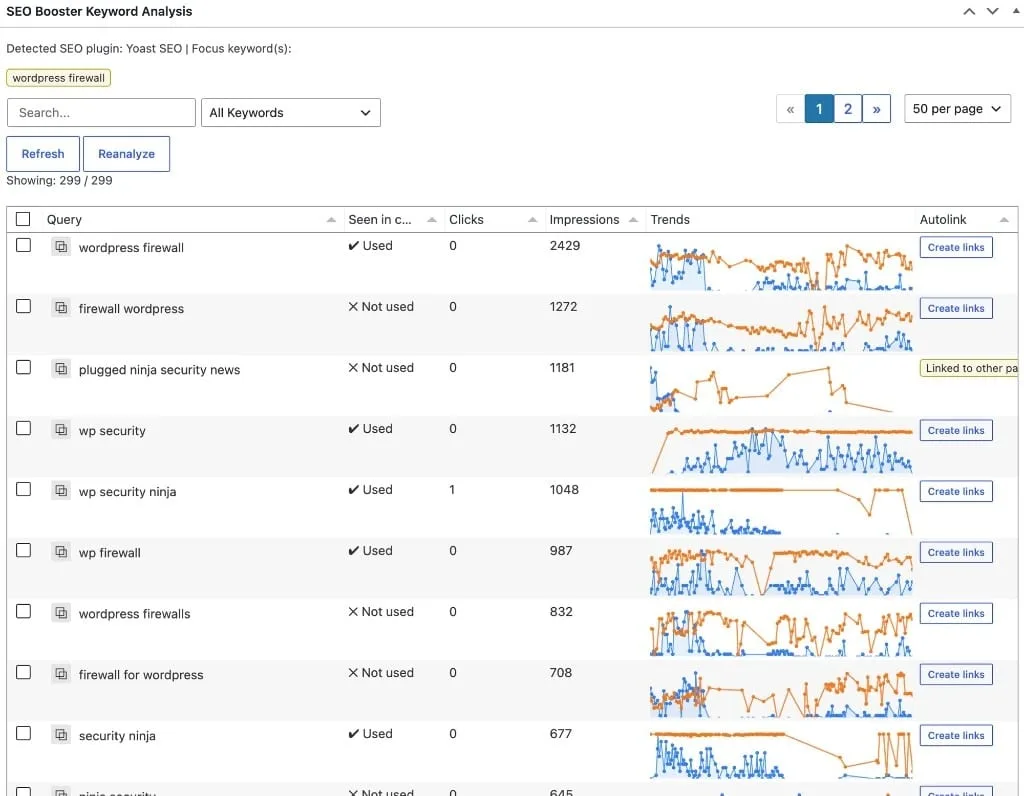
Need an SEO keyword report without leaving WordPress? SEO Booster shows keyword reporting where you already work: dashboard, GSC Overview, the page editor, weekly email, and Tools. Filter, sort, and act on imported Google Search Console data.
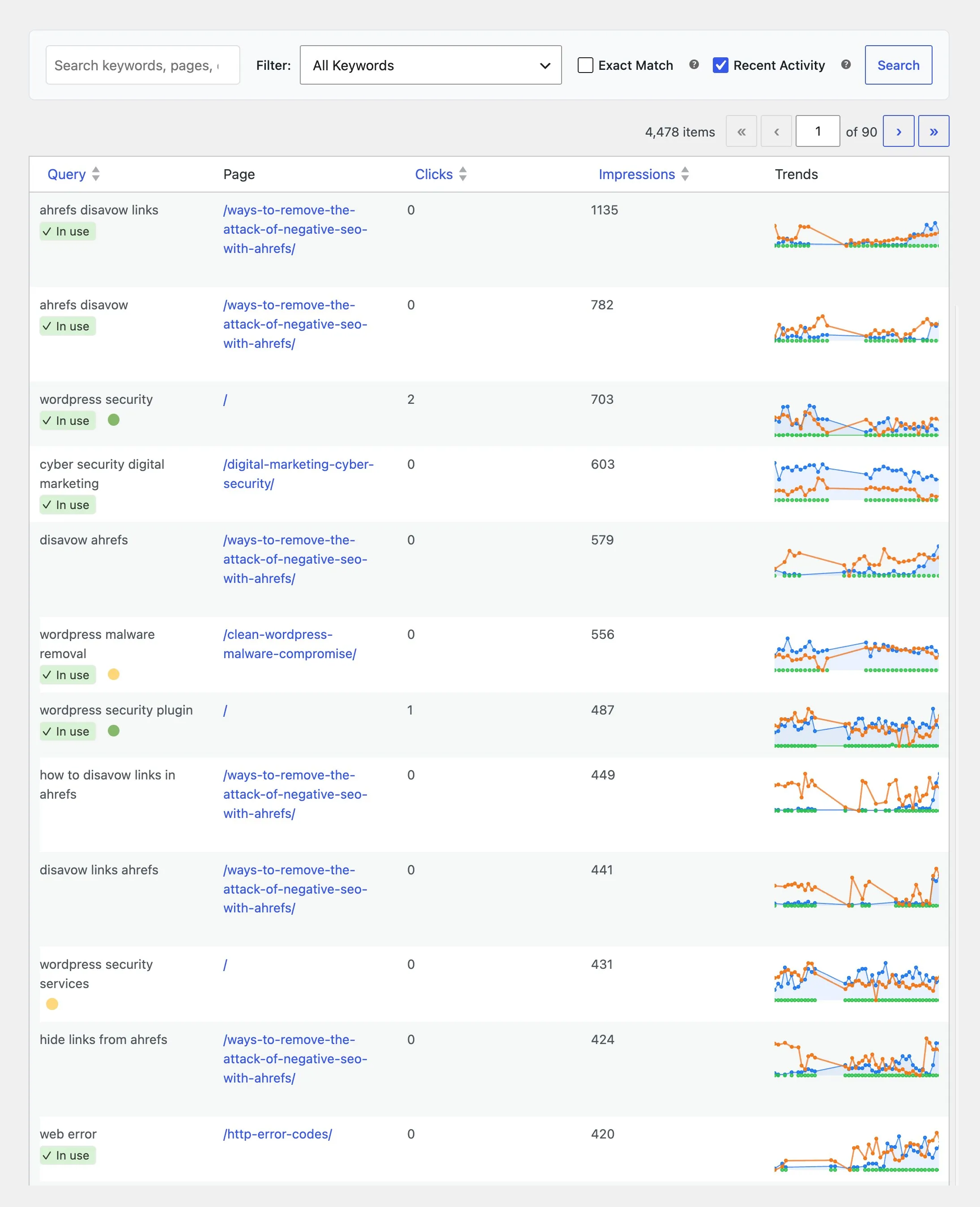
Part of SEO Booster.
Works with your SEO plugin, and makes it smarter.
Keep the SEO plugin you already use. We add Search Console context, a clear fix list, automatic links, and tools that write into the meta you already have. Works with Yoast, Rank Math, AIOSEO, SEOPress, and TSF.
- Yoast SEO
- Rank Math SEO
- All in One SEO (v4+)
- SEOPress
- The SEO Framework (v5+)
One import, many keyword reporting views
What is it?
A WordPress keyword report built from Search Console data, surfaced in the admin view that fits each task (table, chart, email, or batch tool).
Who is it for?
Site owners and agencies who need keyword reporting for trends, content gaps, cannibalization, or batch fixes.
What does it solve?
Hunting the same metrics in Search Console tabs. Pick dashboard, GSC Overview, weekly email, or Tools for the keyword report question at hand.
Match the insight to the screen
Stop hunting in Search Console
Each insight type below links to the WordPress admin path where you can filter, sort, or fix, without leaving your site.
Combine views for faster decisions
Spot a declining term in weekly email, confirm it in GSC Overview, then open the page metabox or SEO Possibilities to fix content.
Scale with Pro batch tools
When dozens of pages need meta or focus-keyword updates, Pro Tools batch scans and AI-assisted rewrites from GSC clusters.
Where to find each keyword insight
New and emerging keywords
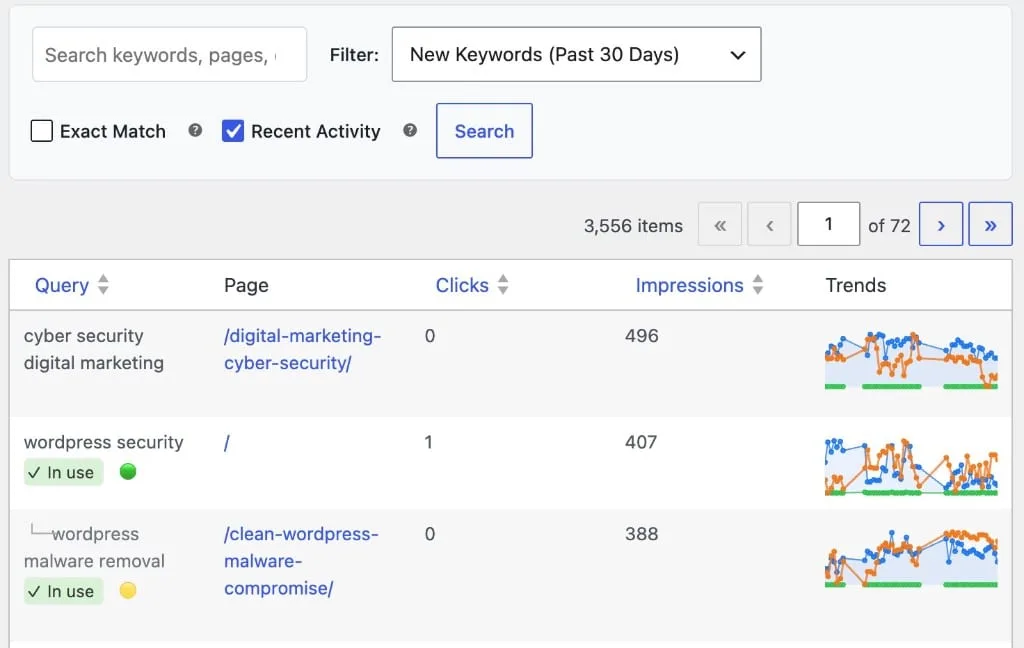
Keywords that recently started driving impressions or clicks: expansion opportunities and proof that new content is gaining visibility.
- GSC Overview → Filter: New Keywords (Past 30 Days): last-visit date within 30 days
- Weekly email → New keywords in the past 7 days section with link to dashboard
- Dashboard → keyword summary cards after GSC import
- Docs: /docs/reports/new-keywords/
Declining and stale keywords
Terms that used to bring traffic but have faded: refresh content before rankings slip further.
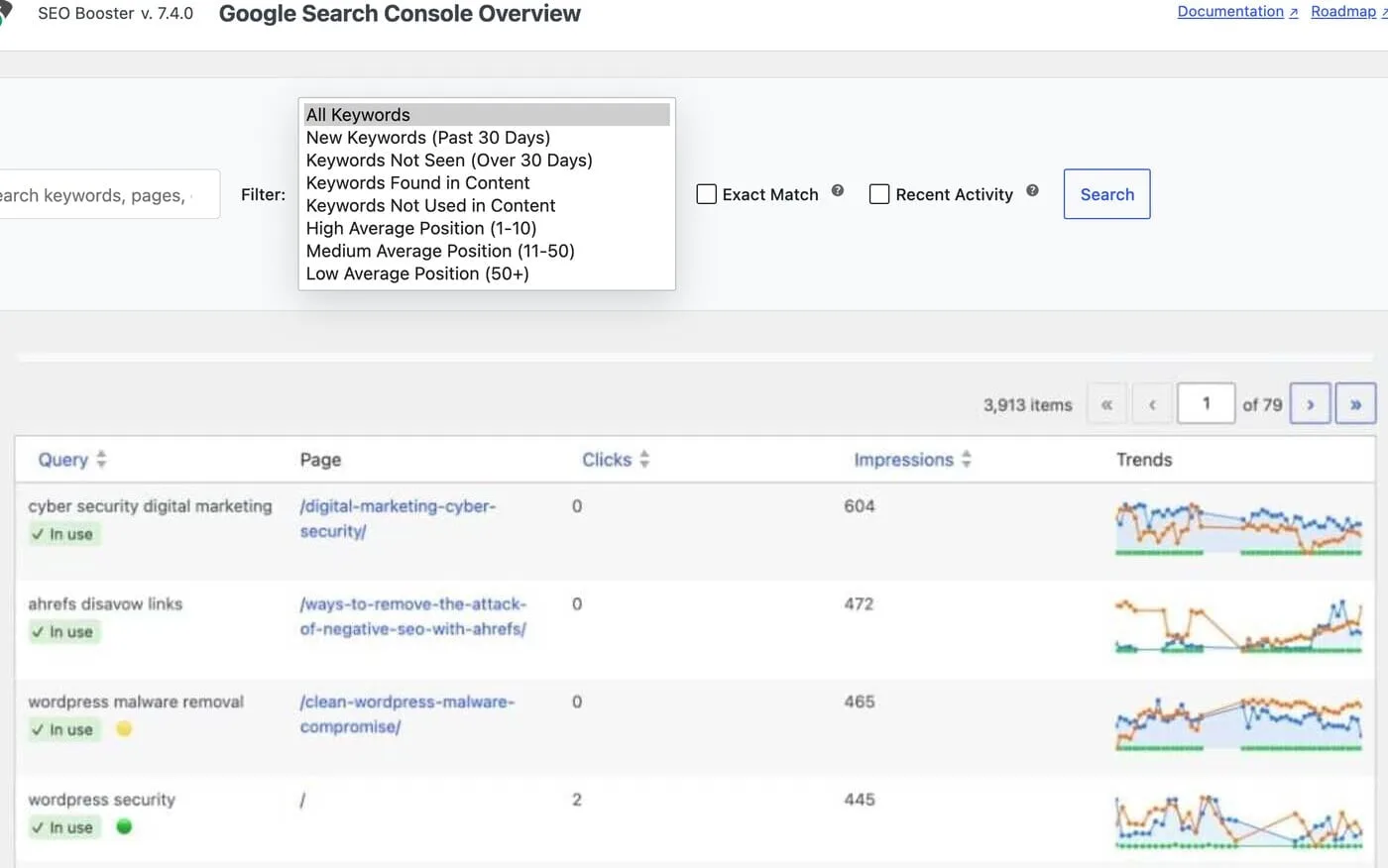
- GSC Overview → Filter: Keywords Not Seen (Over 30 Days)
- GSC Overview → gray inactive rows and X days ago labels on the Query column
- Pro weekly email → Also this week can link to Content decay when pages lose clicks
- SEO Possibilities → per-page analysis may flag GSC-related decay checks
Top performers and top pages
Keywords and URLs with the highest clicks and impressions: double down where you already win.
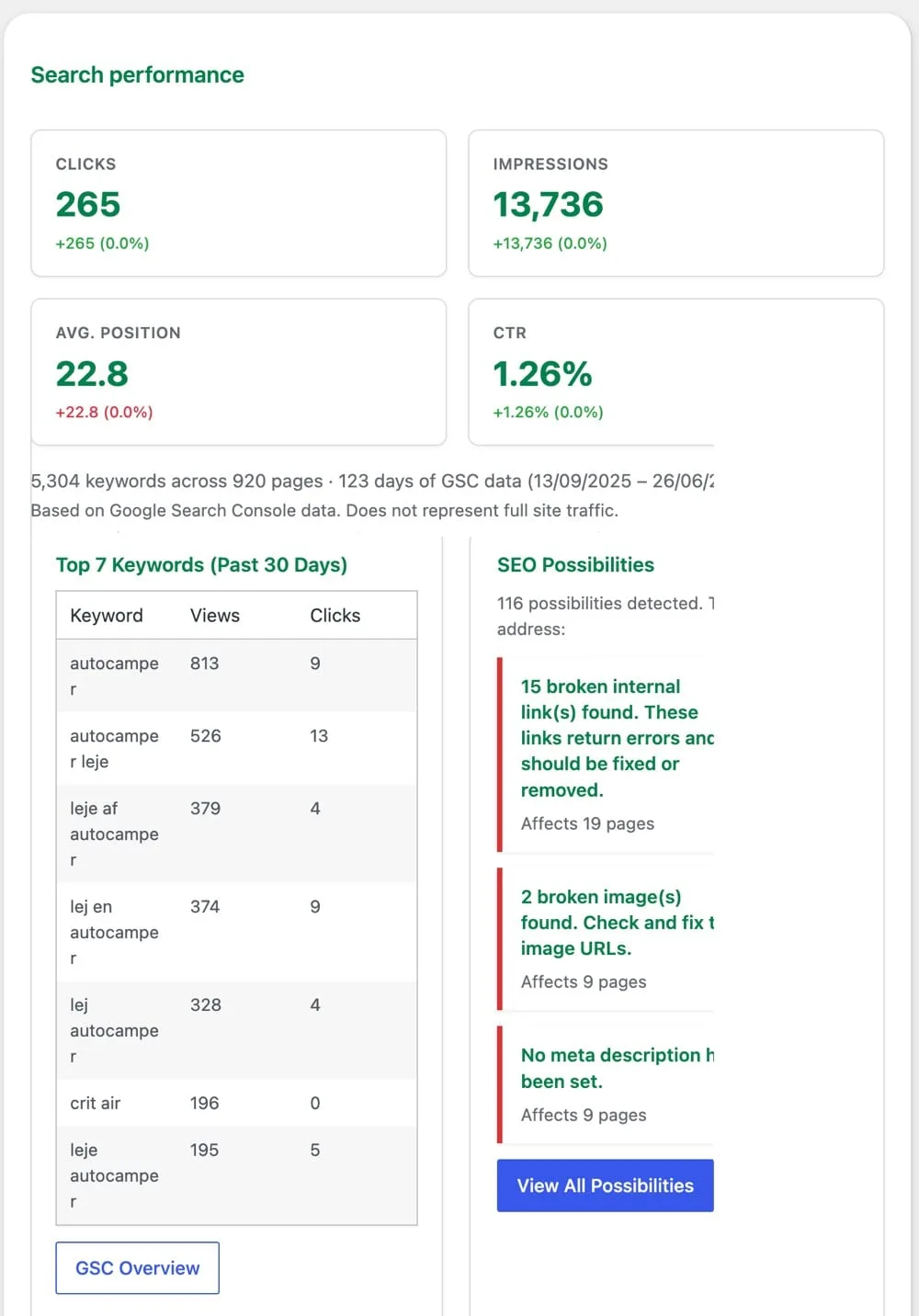
- GSC Overview → sort by Impressions or Clicks (default: impressions, highest first)
- Dashboard → GSC chart and KPI scorecard at the top
- GSC Overview → Page column groups keyword–page pairs; use Edit row action to update winners
- Per-page GSC metabox → keywords for one URL, sorted by impressions
Cannibalization, CTR gaps, and long-tail opportunities
Advanced patterns: multiple pages competing for one query, low CTR at good positions, and striking-distance terms.
- Cannibalization → GSC Overview green/yellow dots on Query column; SEO Possibilities GSC cannibalization check
- Low CTR / striking distance → GSC Overview position filters (High 1–10, Medium 11–50); SEO analysis GSC checks in metabox
- Pro → Tools → GSC opportunities: scan low CTR, striking distance, high impressions/low clicks; batch-rewrite meta with AI
- Long-tail → GSC Overview Low Position (50+) filter paired with high impressions; Tools GSC opportunities clusters
How to use Keyword Insights
Connect GSC once
From the SEO Booster dashboard, connect Google Search Console via OAuth. Initial import pulls up to 90 days; daily sync keeps data current.
Start on the dashboard or GSC Overview
Scan KPI tiles and the chart for sitewide trends. Open GSC Overview for the full searchable keyword–page table with filters.
Drill into a single page
Edit any post and open the GSC metabox: filter by no clicks, content usage, and sort by impressions for that URL only.
Fix at scale
Open SEO Possibilities for prioritized issues across URLs. Use Tools for bulk meta, images, or Pro batch workflows seeded by GSC data.
Stay ahead with email
Enable weekly email in Settings → Email & Reports. Review Search Console pulse, top SEO Possibilities, new keywords, and (Pro) Also this week without logging in daily.
Trusted by WordPress site owners
“SEO Booster Pro has completely transformed how we manage SEO. Accessing Google Search Console data directly in WordPress is a game-changer. We've seen a 40% increase in organic traffic within just two months.”
Emma Davis
Marketing Manager, BrightLeaf Media
Frequently Asked Questions
Is there a single Keyword Report page in the plugin?
Keyword reporting lives in the screen that fits the job: GSC Overview for the full table, the dashboard for sitewide KPIs, the per-page metabox for one URL, weekly email for a scan, SEO Possibilities for issues, and Tools for batch fixes. Read the SEO keyword reports guide for the full map, or use the sections below on this feature page.
Where do I find new keywords?
GSC Overview → Filter New Keywords (Past 30 Days). Also check the weekly email new-keywords section and dashboard summary cards after import.
Where do I find declining or lost keywords?
GSC Overview → Keywords Not Seen (Over 30 Days). Gray rows and days-ago labels also flag stale terms in any view. On Pro, weekly email Also this week can link to Content decay when pages are losing clicks.
Where are top performing keywords?
Sort GSC Overview by Clicks or Impressions. The dashboard chart shows sitewide trends. The GSC metabox on each edit screen lists keywords for that URL by impressions.
How do I spot keyword cannibalization?
Look for yellow competition indicators in GSC Overview and the keyword cannibalization check in SEO analysis / SEO Possibilities.
What about CTR and long-tail opportunities?
Use GSC Overview position filters for striking-distance terms. Pro Tools → GSC opportunities scans low CTR and high-impression/low-click pages and can batch-rewrite SEO titles and meta with AI.
Do I need Pro for keyword insights?
GSC import, GSC Overview, metabox, dashboard, weekly email, SEO Possibilities, and free Tools tabs work on the free plugin. Pro adds 404 monitoring, Pro Tools tabs (including Also this week email links when signals exist), autolink conveniences, and AI bot blocking.
Boost your rankings with smarter SEO
Connect Google Search Console, fix pages from real search data, automate internal links, and use AI when the repetitive work piles up.
Get Started