
SEO Keyword Reports in WordPress from Search Console Data
Keyword reporting in WordPress: where to find SEO keyword reports, declining terms, top performers, and CTR gaps inside SEO Booster after GSC import.
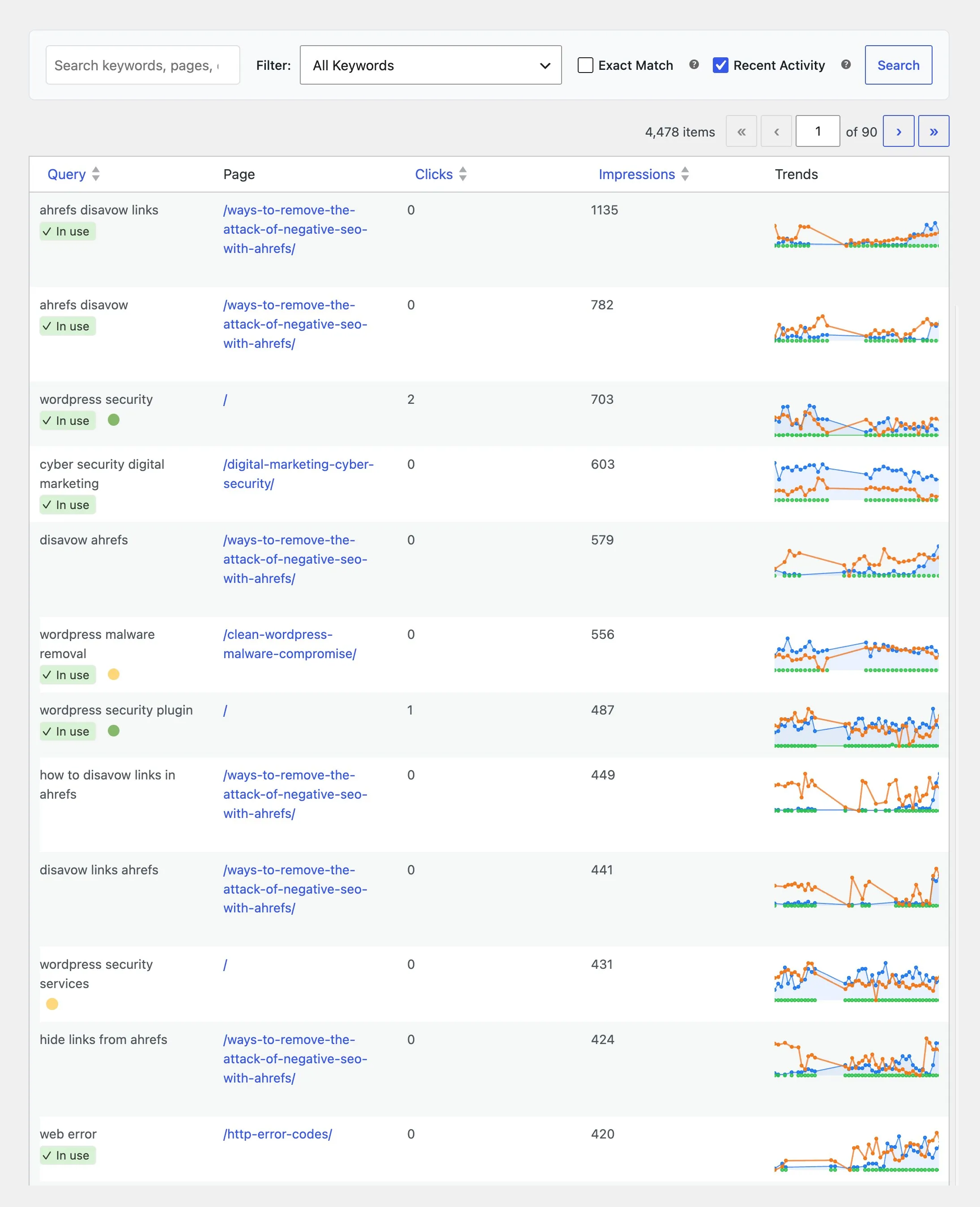
Quick answer: SEO keyword reports in WordPress come from Google Search Console data imported into SEO Booster. There is no one admin screen named Keyword Report. Use GSC Overview for the searchable table, the dashboard for trends, the edit-screen metabox per URL, the weekly email for digests, and Keyword Insights to map each insight type to the right screen.
If you searched for keyword reporting, seo keyword report, or keyword report, you likely want a list of queries and what to do with them. This guide is that map for SEO Booster.
What is an SEO keyword report?
A keyword report answers: which queries send traffic, which pages they land on, and whether performance is improving or slipping. Rank trackers guess positions across the web. Search Console keyword reporting uses data Google already associates with your property.
SEO Booster spreads those insights across WordPress admin views so you fix pages where you edit, not in a spreadsheet export.
Keyword report map (where to click)
| Insight | WordPress path | Doc / blog |
|---|---|---|
| All keyword–page pairs | SEO Booster → GSC Overview | GSC Overview doc |
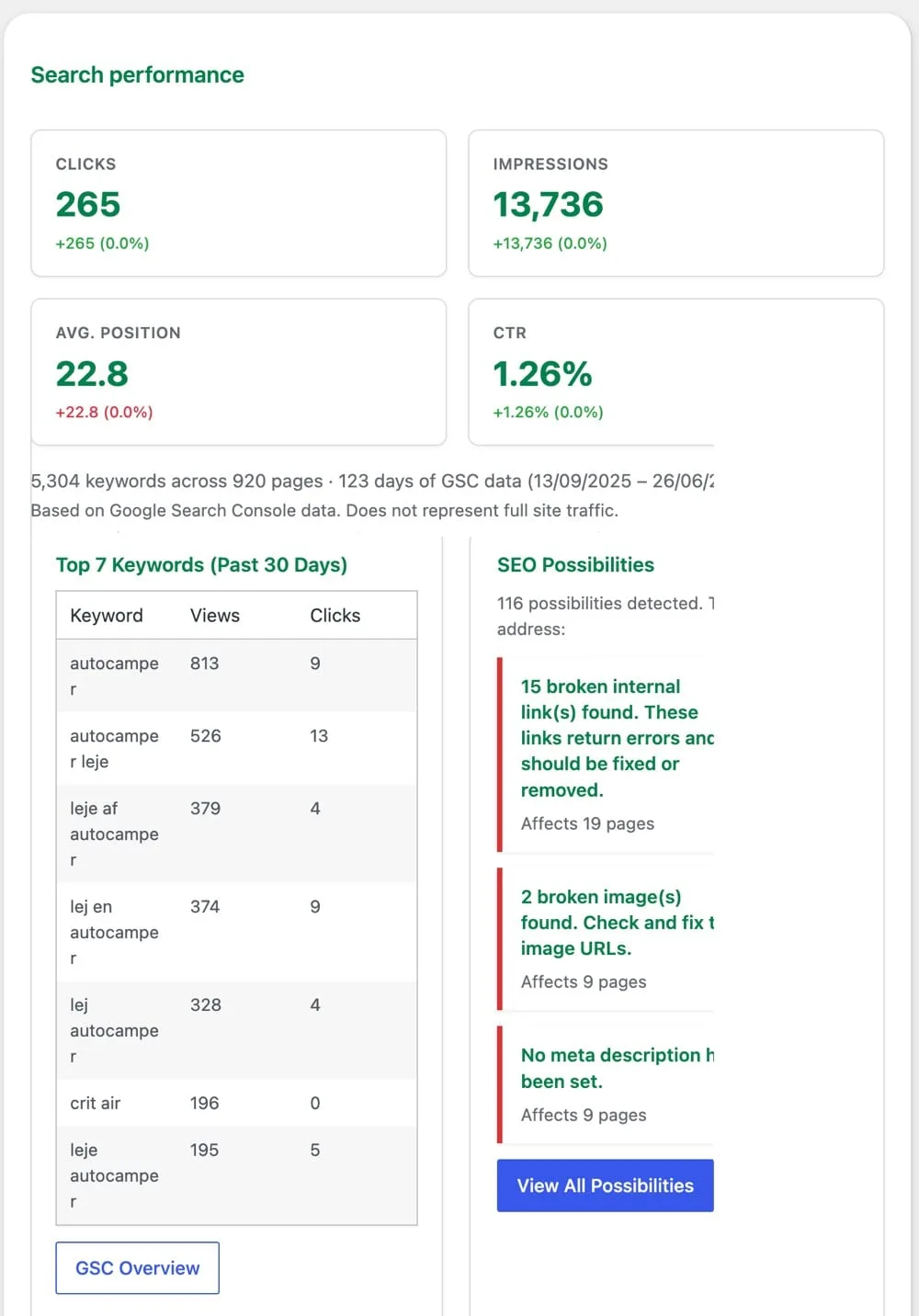
| Sitewide KPIs + chart | SEO Booster → Dashboard | Dashboard overview |
| One URL’s keywords | Post editor → SEO Booster metabox → Keywords | Keyword analysis metabox |
| New keywords | GSC Overview → New Keywords (Past 30 Days) | New keywords report · Discovering new keywords |
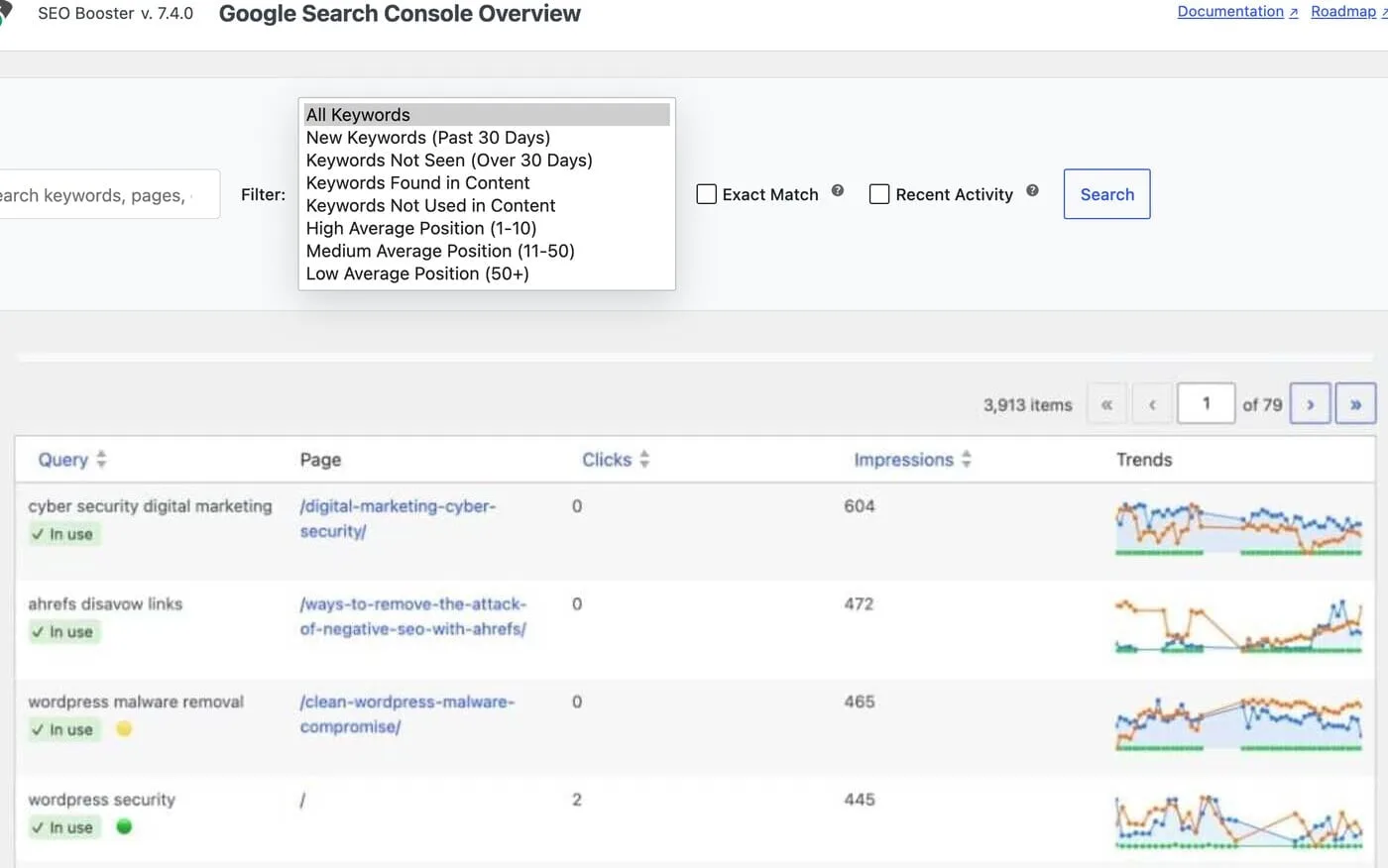
| Declining / stale terms | GSC Overview → Keywords Not Seen (Over 30 Days) | Declining keywords · Declining performance doc |
| Lost traffic | Keywords Not Getting Traffic Anymore patterns | Reviving lost keywords |
| Top performers | GSC Overview → sort by Clicks or Impressions | Top performing keywords |
| Near-win terms | Position filters + Trends column | Keywords most improvement |
| Low CTR | Position 1–10 or 11–50 filters | CTR improvement |
| Long-tail | Low Position (50+) + high impressions | Long-tail keywords |
| Cannibalization | Yellow/green dots on Query column | Cannibalization guide |
| Weekly digest | Settings → Email & Reports | Weekly SEO report guide |
| Content decay (Pro) | Tools → Content decay | Content decay in WordPress |
| Batch meta from GSC (Pro) | Tools → GSC opportunities | Pro Tools |
Full plugin-side reference: Keyword Insights hub.
New keywords
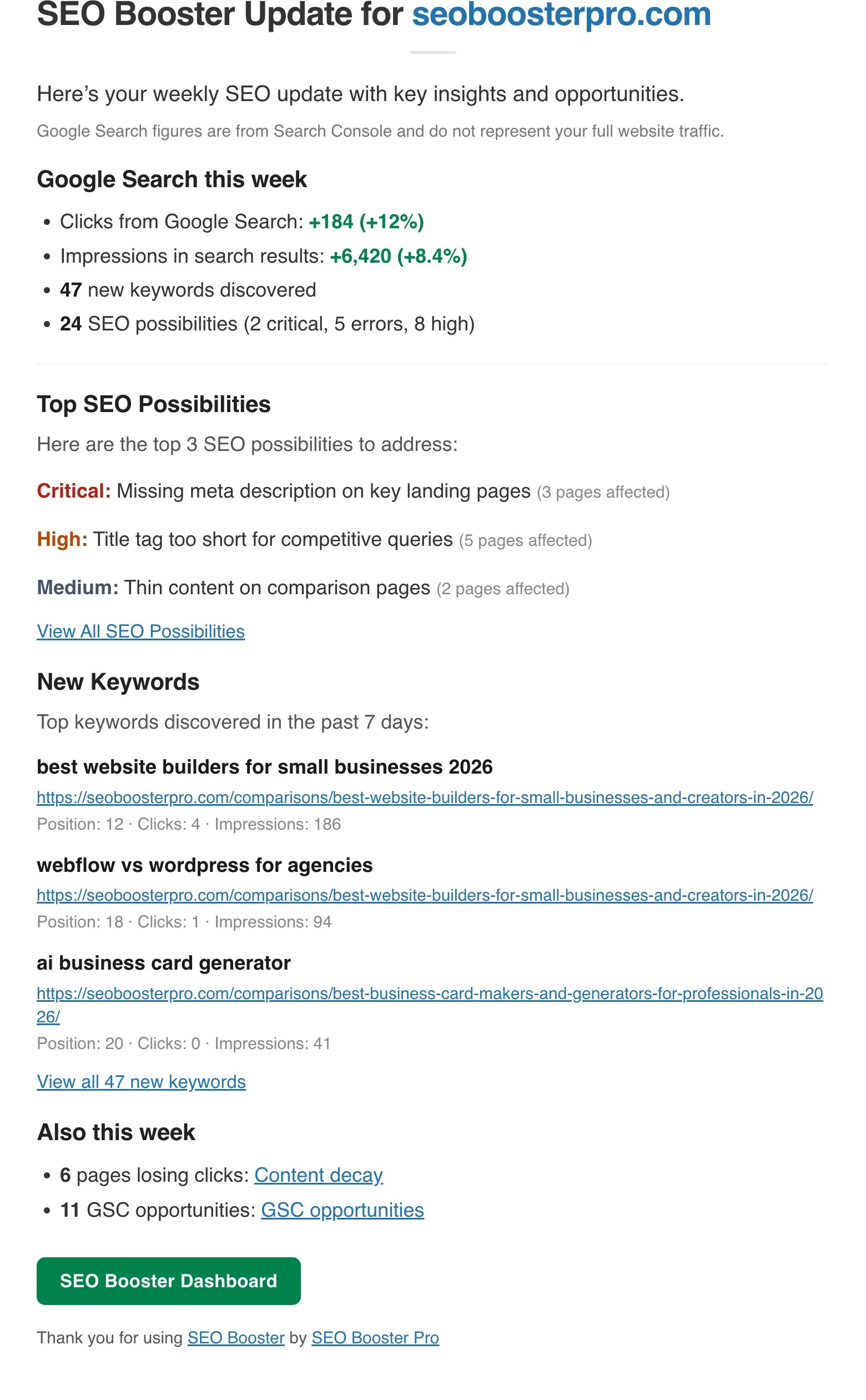
Filter New Keywords (Past 30 Days) in GSC Overview to see terms that recently started earning impressions. The weekly email highlights up to three examples each week.
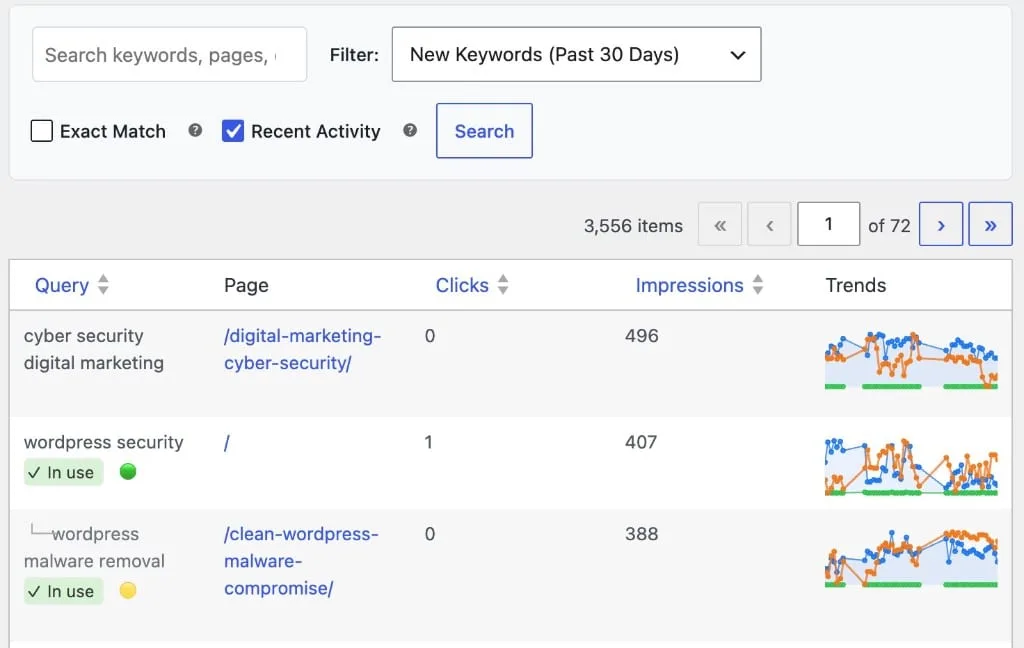
Expand winning topics with discovering new keywords habits: cluster related queries, update cornerstone pages, add internal links.
Declining and lost keywords
Declining terms still show impressions but trend down. Lost terms near-zero out versus history. Use GSC Overview stale filters first, then read declining keywords and reviving lost keywords for playbooks.
Pro Content decay (Tools tab) flags URLs losing clicks over 30-day windows. See content decay in WordPress.
Top performers and improvement potential
Sort GSC Overview by Clicks or Impressions to see winners. The dashboard chart summarizes sitewide movement.
Protect winners with top performing keywords. Lift page-two terms with keywords most improvement.
CTR, long-tail, and cannibalization
- CTR gaps: Pages ranking with weak snippets → CTR improvement opportunities.
- Long-tail: Specific low-competition phrases → long-tail keywords.
- Cannibalization: Multiple URLs for one query → keyword cannibalization guide.
Weekly email and Pro Tools
Enable Settings → Email & Reports for a scan-friendly weekly SEO report. Pro adds Also this week links into Content decay and GSC opportunities when signals exist.
Connect Search Console once
- SEO Booster → Dashboard → connect Google Search Console (OAuth).
- Select the correct property (domain or URL prefix).
- Wait for initial import (up to 90 days of history).
- Open GSC Overview and start with sort by Impressions.
New to GSC in WordPress? Start with Google Search Console for WordPress beginners.
Keyword reporting is not a single PDF export. It is a set of views tied to real Search Console data. Pick the insight you need, open the matching screen, fix the URL, and let the next sync show whether clicks moved.
Frequently asked questions
What is keyword reporting in SEO?
Tracking how queries perform over time using impressions, clicks, CTR, and average position. In WordPress, SEO Booster builds keyword reports from imported Google Search Console data instead of a separate rank tracker subscription.
Where is the keyword report in WordPress?
There is no single legacy report page. Open GSC Overview for the full table, the dashboard for sitewide KPIs, the per-page GSC metabox for one URL, the weekly email for digests, or Pro Tools for batch fixes.
Is SEO Booster keyword reporting free?
GSC import, GSC Overview, dashboard charts, per-page keyword tables, and weekly email are in the free plugin. Pro adds batch Tools (GSC opportunities, content decay, focus keywords) and deeper triage in SEO Possibilities.
How is this different from Ahrefs or SEMrush keyword reports?
Third-party tools estimate competitor keywords and backlinks. SEO Booster reports use your verified Search Console property inside WordPress, optimized for fixing pages you already rank for, not discovering unrelated keywords across the web.
How often does keyword data refresh?
After OAuth connect, SEO Booster imports up to 90 days of history and syncs on a daily schedule. See how often data refreshes.
On this page