
Google Search Console for WordPress Beginners
Connect Google Search Console to WordPress, read impressions and clicks in SEO Booster, and learn where to find keyword reports without leaving wp-admin.
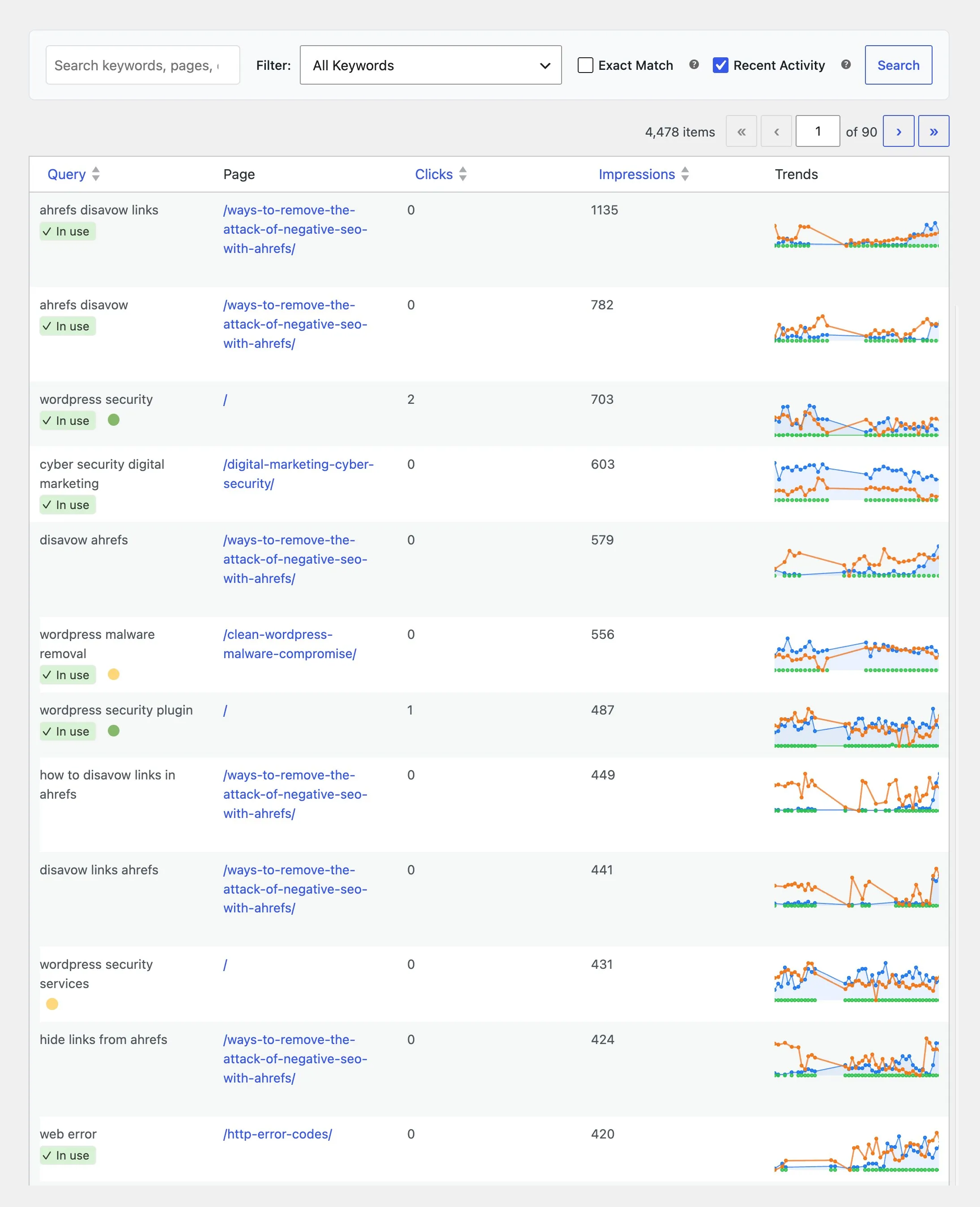
Quick answer: To use Google Search Console in WordPress, install SEO Booster, connect your property once via OAuth, wait for the initial import, then open GSC Overview for sitewide queries or the SEO Booster metabox on any post for that URL’s keywords. For what each report means, continue with the SEO keyword reports guide.
Search Console tells you how Google sees your site in search results. WordPress alone does not show that data in the editor. SEO Booster brings it into admin so you can fix titles, content, and links where you already work.
Why connect GSC to WordPress
Without integration you copy metrics from search.google.com into spreadsheets, lose context on which post each query maps to, and delay fixes. With SEO Booster:
- Keyword data sits beside the edit screen for each URL.
- Sitewide filters (new, declining, low CTR) live in GSC Overview.
- Weekly emails summarize movement without daily logins.
Connect Search Console (one-time setup)
- Install SEO Booster from WordPress.org or your Pro license zip.
- Open SEO Booster → Dashboard and click connect Google Search Console.
- Sign in with a Google account that has access to the property.
- Select the property (domain or URL prefix) that matches your live site.
- Wait for the initial import (up to 90 days of history depending on property size).
- Confirm daily sync is scheduled (default after connect).
Docs: GSC overview · How often data refreshes · Grant access to a property
Where to look first (beginner path)
| Step | Screen | What you learn |
|---|---|---|
| 1 | Dashboard | Sitewide clicks, impressions, chart trend |
| 2 | GSC Overview | Every query–page pair, sortable and filterable |
| 3 | Edit any post → SEO Booster → Keywords | Queries for that URL only |
| 4 | SEO Possibilities | Prioritized fixes across URLs |
| 5 | Settings → Email & Reports | Weekly digest to your inbox |
Read the four core metrics
- Impressions: How often your URL appeared in search results for a query.
- Clicks: How often searchers clicked through.
- CTR (click-through rate): Clicks divided by impressions. Weak CTR at good positions often means the snippet needs work.
- Average position: Rough ranking band for the query (not exact rank every time).
Do not chase position alone. A query with 500 impressions at position 12 may matter more than position 3 with five impressions.
Common beginner workflows
Find quick wins: GSC Overview → filter Medium Average Position (11–50) → sort by Impressions. These are terms you almost rank for. See keywords most improvement.
Fix low clicks at good ranks: Filter High Average Position (1–10) and compare CTR. See CTR improvement.
Spot new footholds: Filter New Keywords (Past 30 Days). See discovering new keywords.
Catch slips early: Filter Keywords Not Seen (Over 30 Days) or read declining keywords.
Chapter 2: keyword reporting map
Once GSC is connected, keyword work is about picking the right report for the question. The full map lives in SEO keyword reports in WordPress: new vs declining vs top performers vs cannibalization vs weekly email vs Pro Tools.
The Keyword Insights feature page mirrors that map for product overview.
GSC insights beyond the table
SEO Booster also uses GSC data in:
- SEO analysis and full-page checks (on-page + rendered HTML).
- Automatic internal links when you route keywords to cornerstone URLs.
- Pro Tools for batch meta rewrites and content decay scans.
Search Console is the starting point. WordPress is where you act on it.
Frequently asked questions
Can I use Google Search Console inside WordPress?
Yes. SEO Booster connects via OAuth, imports your property data, and shows queries, pages, clicks, and impressions in wp-admin screens such as GSC Overview and the per-page metabox.
Is the SEO Booster GSC integration free?
GSC import, GSC Overview, dashboard charts, per-page keyword tables, and weekly email are included in the free plugin on WordPress.org. Pro adds batch Tools and advanced triage.
Search Console vs Google Analytics for WordPress?
Search Console shows how your site appears in Google Search (queries, impressions, clicks, average position). Analytics shows on-site behavior after the visit. SEO Booster focuses on Search Console search performance, not full analytics.
How many sites can I connect?
One Search Console property per WordPress install during setup. Switch properties in Settings if your site structure changes. See property selection limits.
What should I do after connecting GSC?
Open GSC Overview, sort by impressions, and use the keyword reporting map to pick the right view for each task (new terms, declines, CTR fixes).
On this page