
AI & Credits
Search Console sync, SEO analysis, autolink, and Tools scanning work without AI. When you want help with meta, image alt text, or larger batch rewrites, set up WordPress Connectors or SEO Booster Credits under Settings → AI / LLM.

Part of SEO Booster.
Works with your SEO plugin, and makes it smarter.
Keep the SEO plugin you already use. We add Search Console context, a clear fix list, automatic links, and tools that write into the meta you already have. Works with Yoast, Rank Math, AIOSEO, SEOPress, and TSF.
- Yoast SEO
- Rank Math SEO
- All in One SEO (v4+)
- SEOPress
- The SEO Framework (v5+)
AI can help when the workload gets heavy
What is it?
Suggestions for meta, images, and GSC batches via WordPress Connectors or prepaid SEO Booster Credits. Only when you want them.
Who is it for?
Anyone who wants help with repetitive meta and alt-text work, without replacing Search Console data and SEO analysis.
What does it solve?
Slow, repetitive meta and alt-text work. Search Console sync, issue lists, and autolink still run with AI turned off.
Where AI appears
SEO metabox suggestions
Generate or refine SEO titles, descriptions, and related fields from page content and GSC keywords, then apply them in your active SEO plugin when a provider is active.
Tools batch jobs
Bulk meta, image metadata, GSC opportunities, and Pro Entity Map drafts can use your Search Console data and page content as a starting point. Focus Keyword suggestions use Search Console data without AI or Credits.
Dashboard balance card
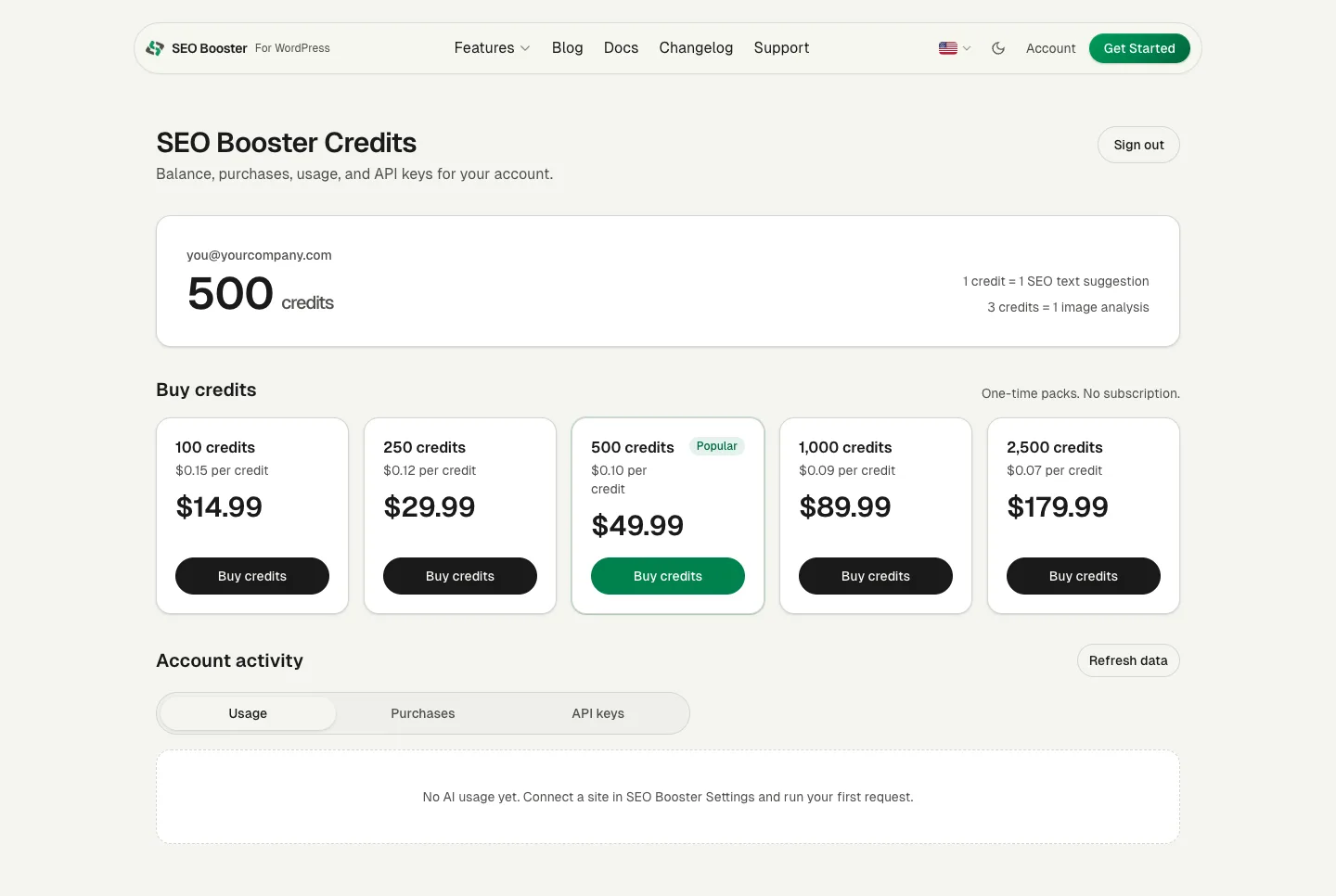
When Credits is selected, the dashboard shows remaining balance with a link to AI settings and the [Credits portal](https://seoboosterpro.com/credits/).
Configure AI in Settings
AI provider selection
Path: SEO Booster → Settings → AI / LLM tab
- Disabled: no AI features call external services
- WordPress Connectors: requires WordPress 7+ and a configured connector under Settings → Connectors
- SEO Booster Credits: prepaid balance at seoboosterpro.com/credits/ (20 welcome credits on first sign-in; unused welcome credits expire after 90 days of inactivity; purchased credits do not expire; about 1 credit per text suggestion and about 3 per image analysis)
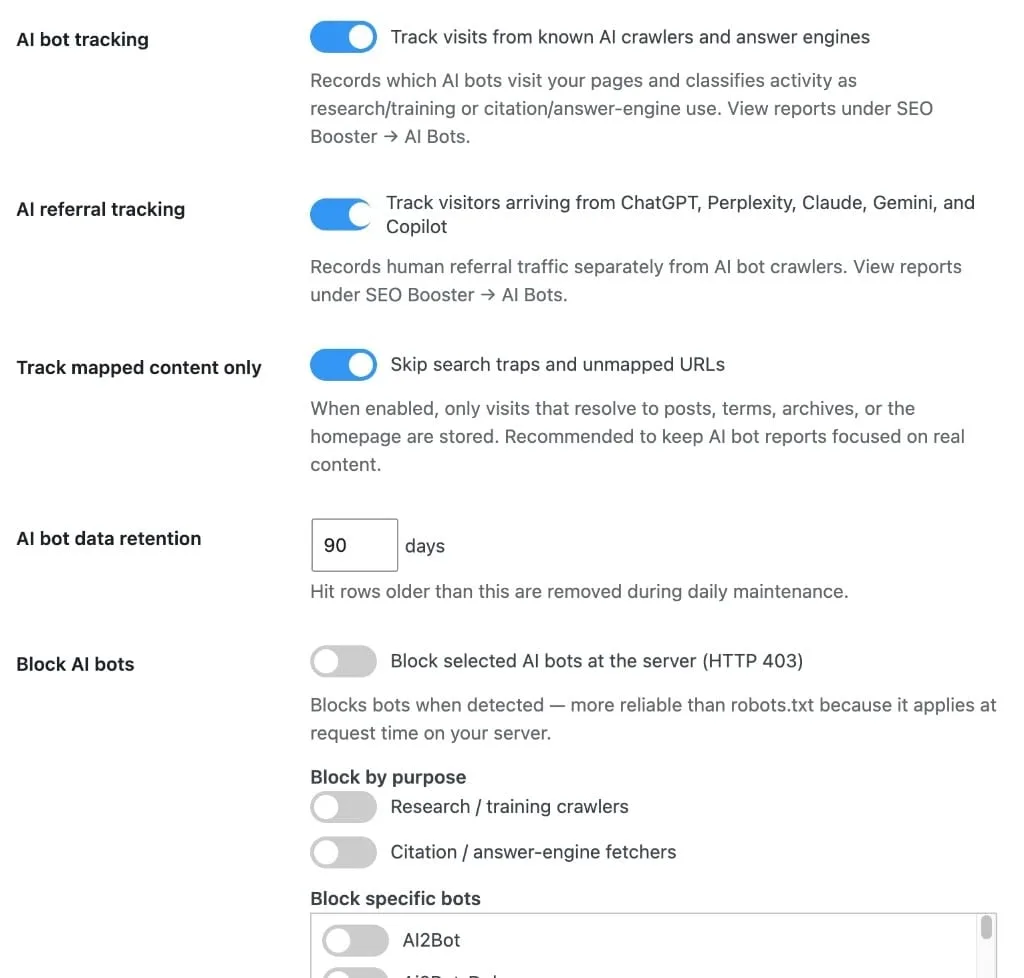
AI bot settings (same tab)
This is about crawlers, not AI writing text. It controls tracking and Pro blocking.
- AI bot tracking: on by default
- Track mapped content only: on by default
- Retention days: 7–365 (default 90)
- Pro: block selected bots or purposes (HTTP 403)
What works without AI
You can run the full SEO workflow without selecting a provider. Meta writes go to your active SEO plugin: see [SEO plugin compatibility](/docs/installation/seo-booster-compatibility-with-popular-seo-plugins/).
- Google Search Console import, GSC Overview, metabox, dashboard
- SEO analysis and SEO Possibilities (non-AI checks)
- Automatic links, weekly email, AI Bots tracking, llms.txt
- Tools scan preview; manual meta edits via your active SEO plugin (Yoast, Rank Math, AIOSEO, SEOPress, or TSF)
How to enable AI
Choose a provider
Open Settings → AI / LLM. Pick WordPress Connectors, SEO Booster Credits, or leave Disabled.
Complete provider setup
For Connectors, configure your model in WordPress Settings → Connectors. For Credits, sign in at [seoboosterpro.com/credits/](https://seoboosterpro.com/credits/), create an API key, then connect in SEO Booster Settings. See [Connect Credits in WordPress](/docs/ai-and-credits/connect-credits-in-wordpress/).
Use in metabox or Tools
Run SEO review, then use AI suggestion buttons, or start a Tools batch with AI generation enabled.
Monitor Credits
Dashboard shows balance when Credits is active. After a portal purchase, use Refresh in Settings to update the displayed balance.
Frequently Asked Questions
Do I need AI?
No. You do not need AI to use SEO Booster. Search Console, analysis, autolink, Possibilities, weekly email, AI bot tracking, and Tools scanning work without it. Text generation needs a configured provider.
What is WordPress Connectors?
WordPress 7+ can send AI requests through Connectors configured in Settings → Connectors. Select WordPress as the provider in SEO Booster AI settings.
What are SEO Booster Credits?
Prepaid AI usage via [seoboosterpro.com/credits/](https://seoboosterpro.com/credits/). New accounts get 20 welcome credits on first portal sign-in. Unused welcome credits expire after 90 days of inactivity; purchased credits do not expire. Rough costs: about 1 credit per text SEO suggestion and about 3 credits per image analysis. Docs: [AI and Credits overview](/docs/ai-and-credits/overview/).
Where can I use AI in the plugin?
SEO metabox title and meta suggestions, image alt/title generation, Tools bulk meta and image batches, Pro GSC opportunities, Pro Entity Map AI drafts, Ask about this page, and Ask about your SEO (Pro). Generate Product SEO for WooCommerce and Comprehensive analysis appear when Credits is selected. Focus Keyword suggestions use Search Console data and do not spend Credits.
Is AI bot tracking the same as AI generation?
No. AI Bots records crawler visits locally. Text generation uses Connectors or Credits, and only if you turn it on.
Boost your rankings with smarter SEO
Connect Google Search Console, fix pages from real search data, automate internal links, and use AI when the repetitive work piles up.
Get Started