
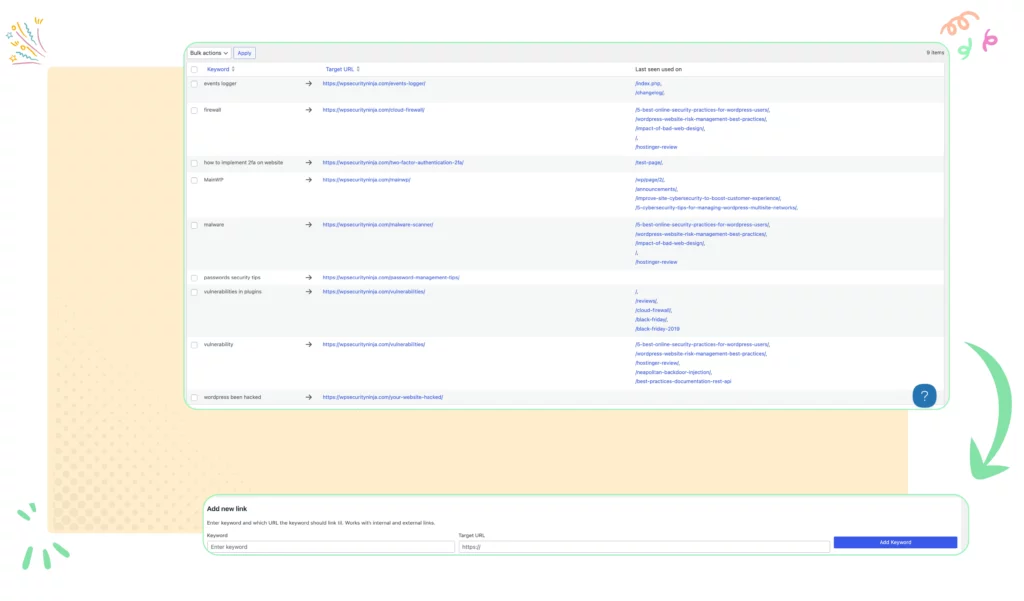
The Automatic Linking feature in SEO Booster allows you to effortlessly create internal links within your website’s content. By adding a keyword term and a URL, the plugin automatically processes every page on your site before the content is displayed to visitors. This dynamic linking helps reinforce the relevance of specific pages and can significantly improve your site’s SEO.
Contents
How It Works
When you set up an automatic link, SEO Booster will search for the specified keyword term across all your pages. If it finds that keyword within the content of a post or page, it will automatically convert that keyword into a hyperlink pointing to the URL you’ve specified.
The plugin makes sure not to make a link where we do not want it. For instance in the middle of a headline or if the keyword it already is linking somewhere else. The system also makes sure not to try to make changes in the hidden parts of the code or parts that are supposed to have a link.
The links will only be created inside the content of the pages or product pages where it is practical to make a link.
How to add a new link
Go to “SEO Booster” and find the “Automatic Links” page.
Here you can see you existing keyword phrases and links as well as add or delete.
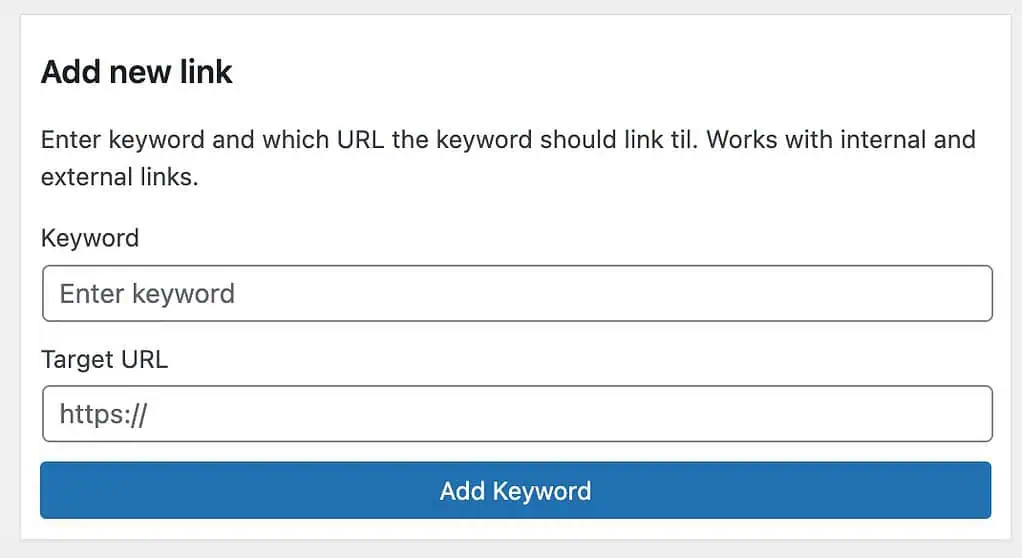
Enter your keyword and any link you want it to point to, you can make it an internal link or any external link you want to use.
How to edit keywords
You can easily edit existing keywords if you made a typo or want to change a link. Just double click a keyword phrase or URL to make changes.
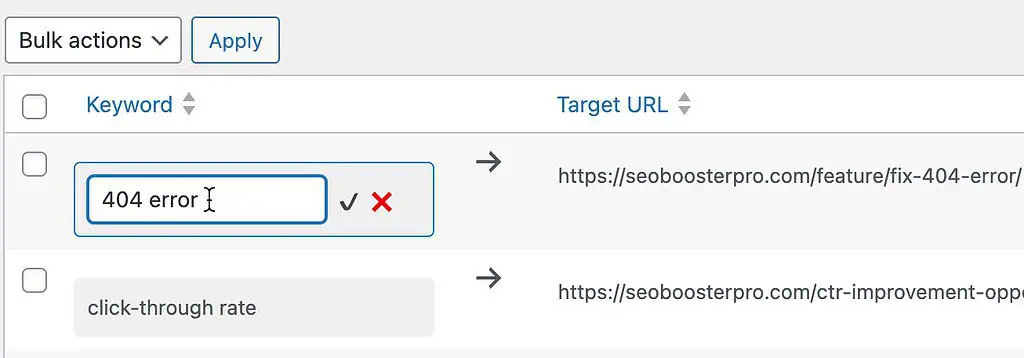
You can save your changes by pressing the return key on your keyboard or clicking the checkmark.
If you change your mind you can click the x to cancel your changes.
How to delete a keyword
Simply click the checkbox next to the keyword and select “Delete” from the “Bulk Actions”. Once you click the Apply button the selected entries will be deleted.
What happens when a keyword is deleted?
SEO Booster works on top of your existing content, which means the links do not exist in reality, it is constantly being injected via programming before a visitor sees your content.
Because of this there are no links inside your content to be deleted or changed, it simply stops becoming a link.
Key Features:
- Safe Linking: The plugin is designed to avoid placing links inside inappropriate tags, such as
<a>,<h1>,<h2>,<h3>,<h4>,<h5>,<h6>,<span>, and<button>. This ensures that links aren’t created within other links, headlines, or other elements where linking might be undesirable. - Per-Page Control: On each page’s admin settings, you have the option to enable or disable the automatic linking feature via a simple checkbox.
- Link Limits: You can set a maximum number of links to be inserted.
- First Occurrence Linking: By default, the plugin only converts the first occurrence of a keyword on a page into a link. However, you can change this setting to allow multiple links for the same keyword on a single page.
Why Automatic Linking is Important
Internal linking is a powerful SEO tool for several reasons:
-
- Indicates Relevance: Internal links help search engines understand the structure of your site and the relationship between pages. By linking certain keywords to specific pages, you’re signaling to Google that these pages are highly relevant for those terms.
- Distributes Page Authority: Internal links distribute page authority (often referred to as “link juice”) throughout your site. When a page is linked to multiple times, it can help boost its authority, improving its chances of ranking higher in search engine results.
- Guides Google’s Crawlers: Internal links act as a guide for search engine crawlers, directing them to your most important pages. This can be particularly beneficial in cases of keyword cannibalization, where multiple pages are competing for the same keyword. By focusing your internal linking on one key page, you can help ensure that Google knows which page to prioritize.
Best Practices for Automatic Linking
- Use Specific Keywords: Choose keywords that are highly relevant to the target page. Avoid overly generic terms that might be too broad.
- Avoid Over-Linking: While internal linking is beneficial, too many links can overwhelm readers and dilute the value of each link. Stick to the default limit of 10 links per page or adjust it based on your content needs.
- Regularly Review Links: Over time, the content on your site may change. It’s important to periodically review your automatic links to ensure they’re still relevant and pointing to the correct pages.
Connecting to Keyword Cannibalization
This feature directly ties into the concept of keyword cannibalization, which occurs when multiple pages compete for the same keyword. By strategically using automatic linking, you can mitigate this issue by consolidating the keyword focus onto a single, authoritative page. This not only improves user experience but also helps search engines better understand which page to rank for that keyword.
For a deeper dive into keyword cannibalization and how internal linking can help resolve it, check out our article on Keyword Cannibalization and SEO Strategy.
Next Steps
With the automatic linking feature, you’re equipped to enhance your site’s internal linking structure effortlessly. By following the best practices outlined above, you can harness the full potential of this tool to improve your site’s SEO and guide both users and search engines to your most important content.