
GSC Keyword Metabox
While editing a post, page, taxonomy, or WooCommerce product, the GSC keywords metabox lists imported Search Console queries for that URL — with search, filters, trend sparklines, and optional autolink indicators (Pro).
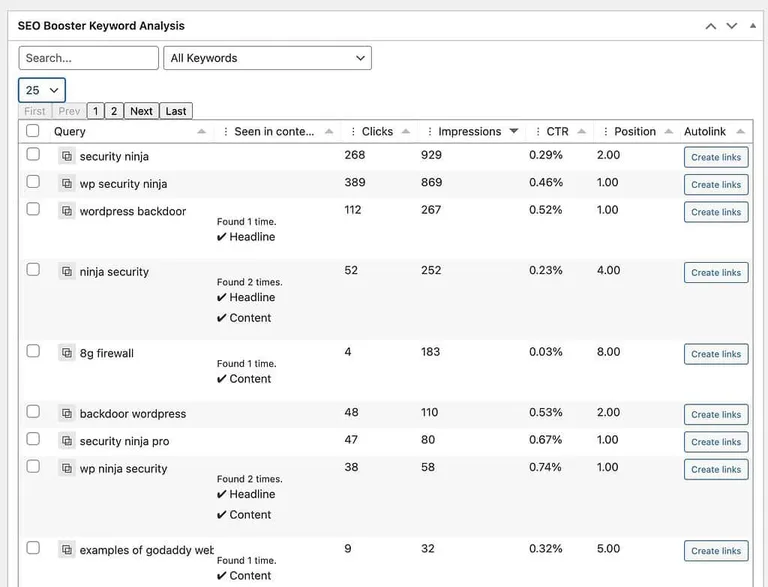
GSC data where you edit
No need to cross-reference Search Console for every URL. The metabox loads keywords for the current page, sorted by impressions by default.
- Tabulator table with query, in-content usage, clicks, impressions, trends
- Client-side search and dropdown filters
- Reanalyze keywords and refresh GSC data for this URL
- Pro — autolink column and one-click rule creation from the popup
Metabox controls
Filter without leaving the editor
Narrow to no-click terms or content gaps before updating the post body or meta.
See trends per keyword
Sparkline charts in the Trends column summarize recent performance for each query.
Copy and export
Copy individual queries or use bulk copy when the table has loaded keywords.
Metabox filters and columns
Search and filter dropdown
Controls appear above the keyword table after data loads.
- Search — partial match on query text (client-side)
- All keywords — no filter
- Keywords with no clicks — impressions but zero clicks (CTR opportunities)
- Keywords not used in content — queries not detected in page body
- Keywords used in content — terms already present in content
- Reset filters — button appears when search or filter is active
Table columns
Default sort is impressions (highest first).
- Query — hover shows first seen and last seen dates; copy icon on each row
- Seen in content — where the keyword appears in content when detected
- Clicks and Impressions — totals for this URL–query pair
- Trends — uPlot sparkline on hover
- Autolink (Pro) — whether a rule exists; create from GSC popup
Actions above the table
After keywords load.
- Refresh — reload keyword list from server
- Reanalyze keywords — re-run GSC keyword processing for this URL
- Copy all — copy visible queries (shown when data exists)
How to use the GSC metabox
-
Open any supported edit screen
Posts, pages, taxonomies, and WooCommerce products show the metabox when Screen Options enables it.
-
Scan top keywords by impressions
Review the default sort to see what already drives visibility for this URL.
-
Filter to content gaps
Choose Keywords not used in content and add high-impression terms to the body or meta.
-
Target CTR fixes
Filter Keywords with no clicks to find impressions without visits — improve titles and descriptions.
-
Pair with sitewide GSC Overview
Use GSC Overview for cross-page cannibalization dots; use the metabox for page-specific edits.
Frequently Asked Questions
Where is the GSC metabox?
On post, page, taxonomy, and product edit screens — scroll to the GSC keywords section. Enable via Screen Options if hidden.
What filters are available?
All keywords, Keywords with no clicks, Keywords not used in content, and Keywords used in content — plus a search box. Unlike GSC Overview, there is no New Keywords or Not Seen dropdown in the metabox.
Does the metabox use the same data as GSC Overview?
Yes — imported Search Console keyword–page pairs. GSC Overview is sitewide; the metabox is scoped to the URL you are editing.
How do I refresh data?
Use Refresh or Reanalyze keywords in the metabox. Sitewide import still runs on the daily GSC schedule.
Can I create autolink rules from here?
Pro shows autolink status per keyword and supports one-click rule creation from the GSC keyword popup on the frontend as well.
Boost your rankings with smarter SEO
Connect Google Search Console, fix pages from real search data, automate internal links, and optionally speed up repetitive tasks with AI.
Get Started