
This article explains various reasons why SEO Booster might not be creating automatic links for your keywords in certain areas of your content.
Contents
Understanding Excluded Elements
The automatic linking feature in SEO Booster is designed to add links to keywords within the main content of your pages and posts. However, certain HTML elements are excluded from automatic linking to maintain proper page structure, SEO best practices, and to prevent invalid HTML.
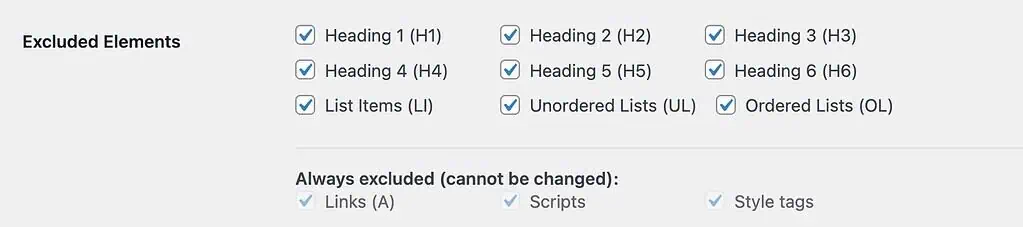
Default Excluded Elements
By default, SEO Booster excludes the following elements from automatic linking:
- Headings (H1-H6): Search engines place higher importance on headings, and linking within headings can dilute their SEO value.
- List Items (LI): Items within ordered and unordered lists.
- List Containers (UL, OL): The containers for list items.
Always Excluded Elements
The following elements are always excluded for technical reasons and cannot be enabled for automatic linking:
- Links (A): Nesting links inside other links is invalid HTML and would break your page. If your keyword appears inside an existing link (like a call-to-action, navigation menu, or button), it cannot receive an automatic link.
- Script Tags: These contain JavaScript code, not visible content.
- Style Tags: These contain CSS code, not visible content.
Common Scenarios Where Links Won’t Appear
1. Nested Content Structures
If your content is created using a page builder or complex layouts, text might be inside elements that prevent automatic linking:
- Text inside a clickable card or button component (which is already a link)
- Content within special blocks or containers that use excluded elements
2. Visual Page Builders
Page builders often create complex nested structures. For example, if you have:
- A featured box that links to another page
- A button with text containing your keyword
- A slider where slide elements are links
In these cases, the text is already inside an <a> tag, so no additional link can be created.
3. Shortcodes and Special Components
Shortcodes and special components might render as excluded elements. For example:
- Button shortcodes typically render as links
- Accordion titles might be heading elements (H2-H6)
- Tab titles are often structured as list items
4. Technical Limitations
Some technical scenarios that prevent automatic linking:
- Text added dynamically via JavaScript (SEO Booster processes content on the server side)
- Content loaded via AJAX
- Content inside iframes or embedded objects
Customizing Excluded Elements
You can customize which elements are excluded from automatic linking in the SEO Booster settings:
- Go to SEO Booster → Settings
- Scroll to “Excluded Elements” section
- Uncheck elements where you want to allow automatic linking
- Save your changes
Remember, even after customizing these settings, links (<a> tags), script tags, and style tags will always be excluded to maintain valid HTML.
Debugging Tips
If a specific keyword isn’t being linked as expected:
- Inspect the HTML of your page (right-click → Inspect Element)
- Look for the keyword in the HTML
- Check if it’s inside any of the excluded elements
- Verify if the keyword exactly matches what you’ve configured in Autolinks
Need More Help?
If you’re still experiencing issues with automatic linking, contact our support team with:
- A link to the page where links aren’t appearing
- The keyword you’re expecting to be linked
- Screenshots of your SEO Booster Autolinks settings